
Premise
If you’re interested in integrating a Siteminder partner Property Management System (PMS) into KAS Access (e.g. Little Hotelier), this guide will walk you through the steps required.
Instructions
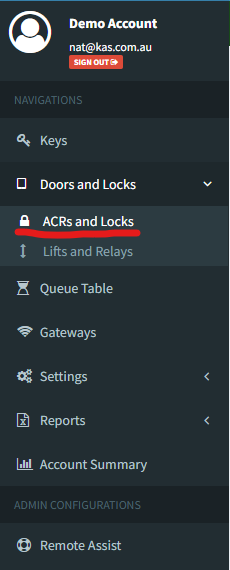
1) Log into KAS Access, and select "Doors and Locks" -> "ACRs and Locks" from the lefthand window
1) Log into KAS Access, and select "Doors and Locks" -> "ACRs and Locks" from the lefthand window
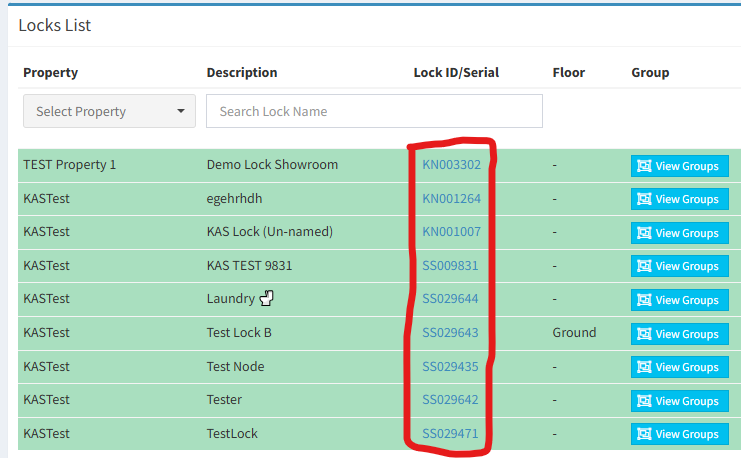
2) For each of your doors/locks, click the "Serial Number"
3) Select "Add Alias" at the lock options

4) Rename the alias to match the corresponding PMS room name exactly (e.g. if the room is called "Room 3 with Balcony" rename the alias to "Room 3 with Balcony".
4a) Note: If you have multiple rooms with a shared door (e.g. Room 3a and 3b with a common hallway door), add the alias of both "Room 3a" and "Room 3b" into the common hallway door.
4b)**If you are integrating to Newbook, change the Lock Alias for each lock to reflect the Newbook Site ID and Site Name in the format eg (without quotes) "47-1" (Site ID and Site Name for each room can be obtained from Newbook under the rooms section. Note you may need to add SiteID or Sitename to the room view in Newbook to see these details.
5) For custom PINs / RFIDs in a reservation, you can enter the number you wish in the first line of the "Reservation Comments" (e.g. writing "1234" without the quotes in the first line will cause 1234 to become the room PIN)
Note: Pincodes should be 4-6 digits and RFID cards numbers should be 10 digits.
6) Contact KAS to finish activating your account.
7) You will need to provide Siteminder with the PropertyId, you API username and API password for your integration. PropertyId can be found in the URL when editing the details for the specific property in the URL https://kasaccess.com/#/properties/1070 = PropertyId 1070.