

Before editing any fields in the table, ensure a backup is taken. If a mistake is made there is no way of 'undoing' something.
This may involve reprogramming ever room and every card.
Instructions
- Log in to the LMS Software
- Default Admin Login User ID 99, Password 9999 or 1234. This may have been changed by upper management
- Select the drop down menu Room Management
-
Select Room Number Management
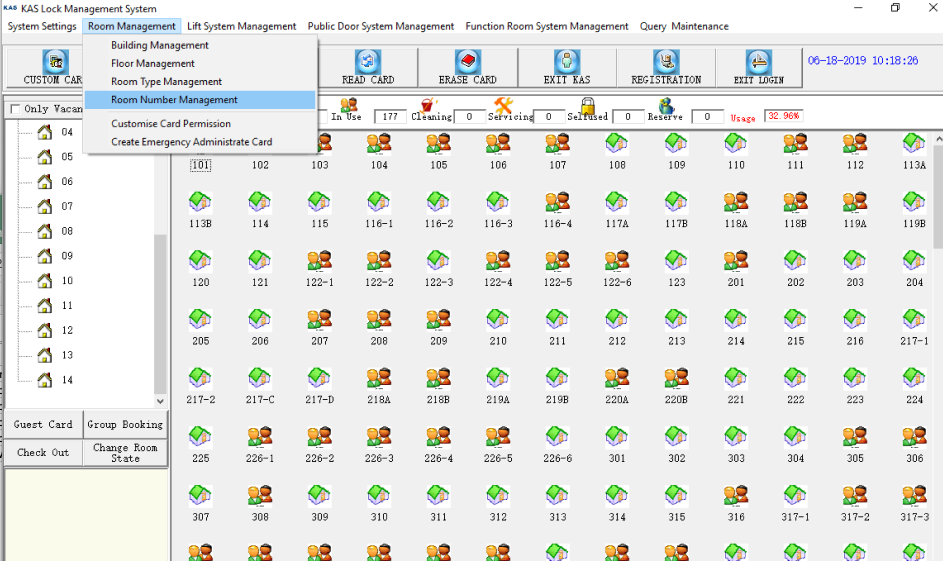
Room Number Management - When viewing the table, you will be looking for Room Number
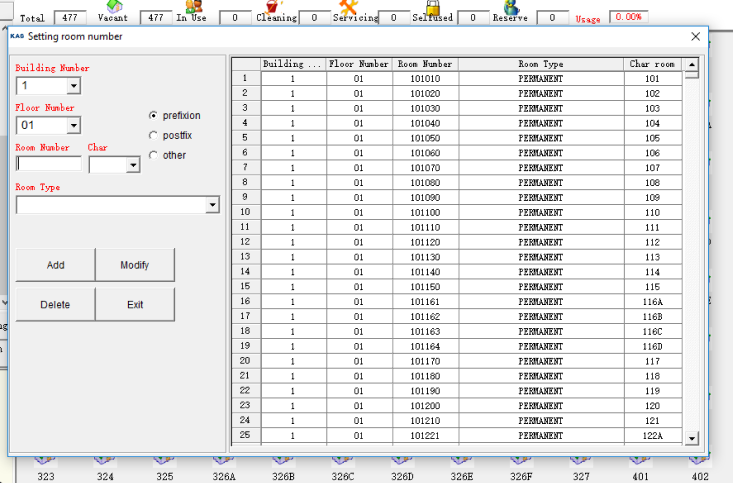
Setting Room Number.png - Building Number: Building the room is located in (usually #1)
- Floor Number: Floor the room is located on
- Room Number: Programming Reference number, this is the number you will use to program the door
- Room Type: Displays the room type created at setup
- Char room: Display the name you see in the software when issuing a card
 Ensure your login has 'management rights', please see upper management for login details if you do not have access to perform the following steps
