
Step # 1 Ensure that the SQL Server has been installed

Step # 2 Download Lock-S Software
- Download the zip file in the footer of this document.
- Once the download is complete unzip the folder (you may need to download "WinRAR" or "7zip" in order to be able to open the file)
Step # 3 Run the Lock-S Installation
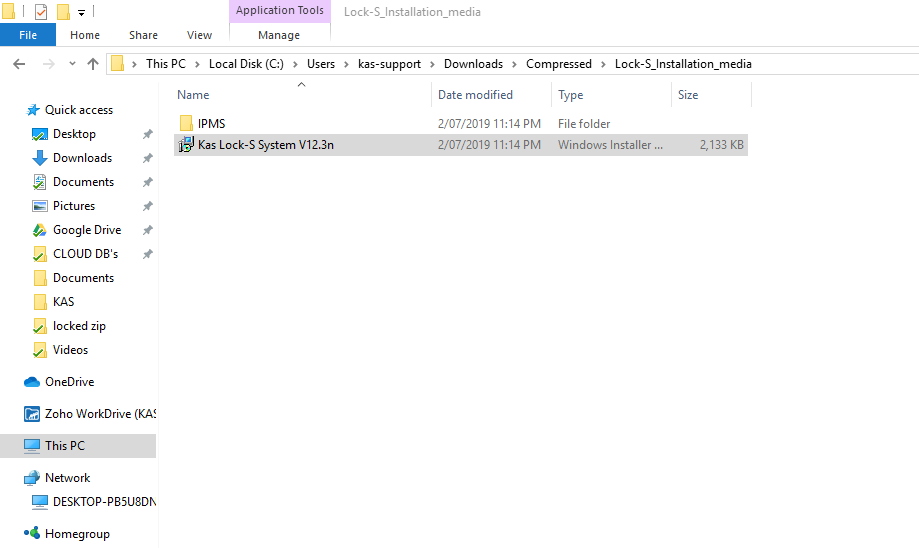
Open the Lock-S installation and double click on "Kas Lock-S System V15.7n.msi"
Step # 4 Install Lock-S
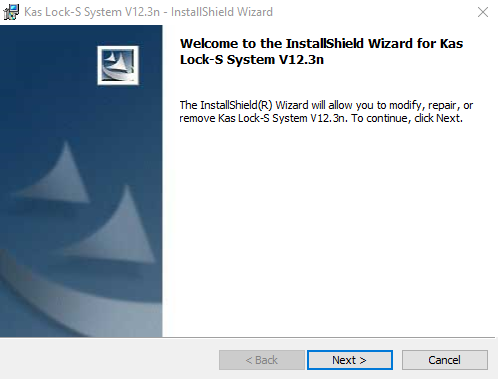
- Click "Next" until the installation finishes
Step # 5 Install IPMS
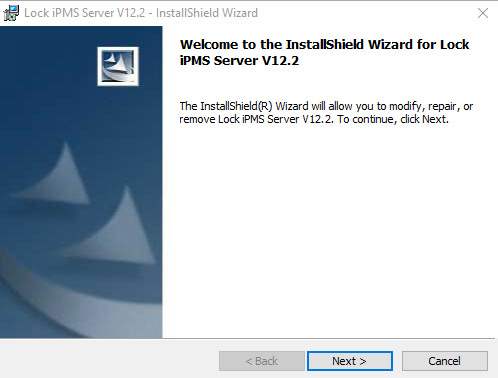
- Open the "Lock iPMS Server V13.6" file, and install it the same way as steps #3 & #4.
Step # 6 Open Lock-S
- Click the Lock-S icon on your desktop ("KAS Lock System")
- In the "SQL Server" section, type in "LOCALHOSTKASDB"
- Enter the default password: kas123
- Click Next and then OK
- Input your software license code (Please contact KAS to receive a license code)
- Enter your property name to complete the initial setup.

Note: Depending on the way the installation was performed, you may need to write the computer’s name instead of "LOCALHOST"
Step # 7 Make sure Lock-S Opens and Ensure it is connecting to the database
Note: Online functionality with Lock-S has been deprecated and is no longer officially supported.
While it may still function, we cannot guarantee this.
Once Lock-S opens:
- Go to System -> System Parameters and for IPMS (online functionality only), tick "Allow network function" checkbox.
- Open Microsoft SQL Server Management Studio
- Depending on your installation, use the credentials to your database. Default: Server Name – LOCALHOSTKASDB ; Login – "sa" ; Password – "kas123"
- With Lock-S Closed, open the IPMS server installation folder (default path: C:Program Files (x86)LockPMSServer) and run the init.sql file, then click "Execute" at the top.
- If this step fails, you may need to create a database. To do so: Right Click "Databases" and select "New Database". Type in "LockDB_PMS" in the name section, and click OK
Installation Complete – User Guide
At this point you should be able to launch Lock-S and use it fully.
Please refer to the User Guide in order to learn about the program’s functionality.