Premise
In the event of a property handover or as part of your backup routines, the Lock-S database can be backed up to prevent a total system lockout.
This ensures that in any event, you will be able to restore your database on a new computer and still issue keys as you normally would.

Without a backup, in the event of a computer failure, all of your doors will have to be reset with the System Card before they can accept a new Lock-S system installation.
If your computer failed at a point where the System Card does not have the Clear Function enabled, this will require the disassembly of all the locks on your property.
If your computer failed at a point where the System Card does not have the Clear Function enabled, this will require the disassembly of all the locks on your property.

Note: While initial installations are included in the original price, subsequent installations (e.g. secondary computer or re-installation in case of computer failure) will incur a charge as per our IT Services policy.
Backup Steps
This guide assumes that the configuration settings are the default settings as used in the installation guide.
1) Open the SQL Server Management Studio
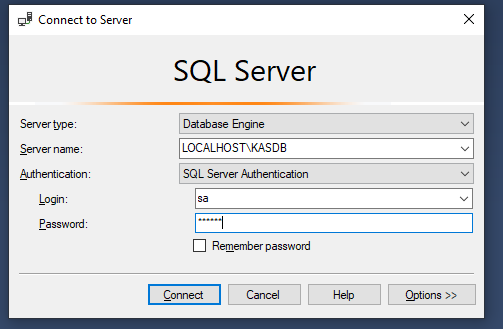
Default Server Name: LOCALHOSTKASDB
Default Login: sa
Default Password: kas123
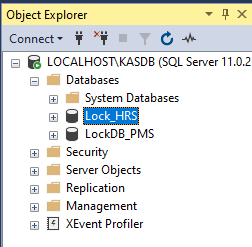
2) Locate the Lock_HRS and LockDB_PMS databases (Note: The "LockDB_PMS is optional. If it does not appear, you do not need it).
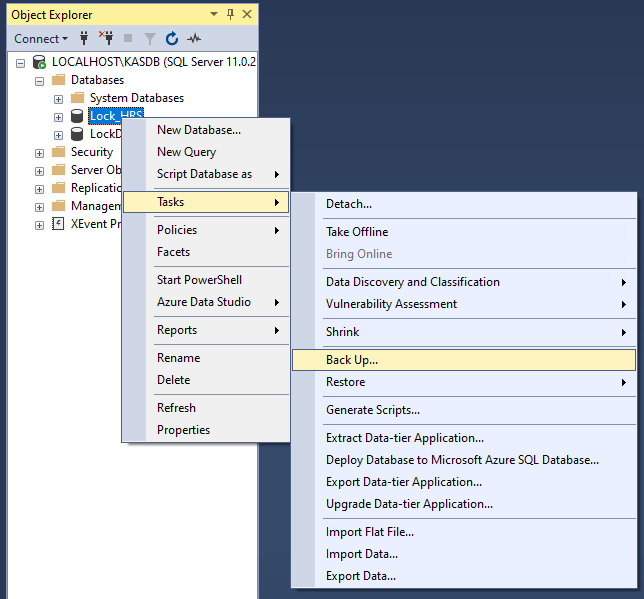
3) Right Click -> Select "Tasks" -> "Backup"
4) Select "Add" and choose the location of where to save the backup to
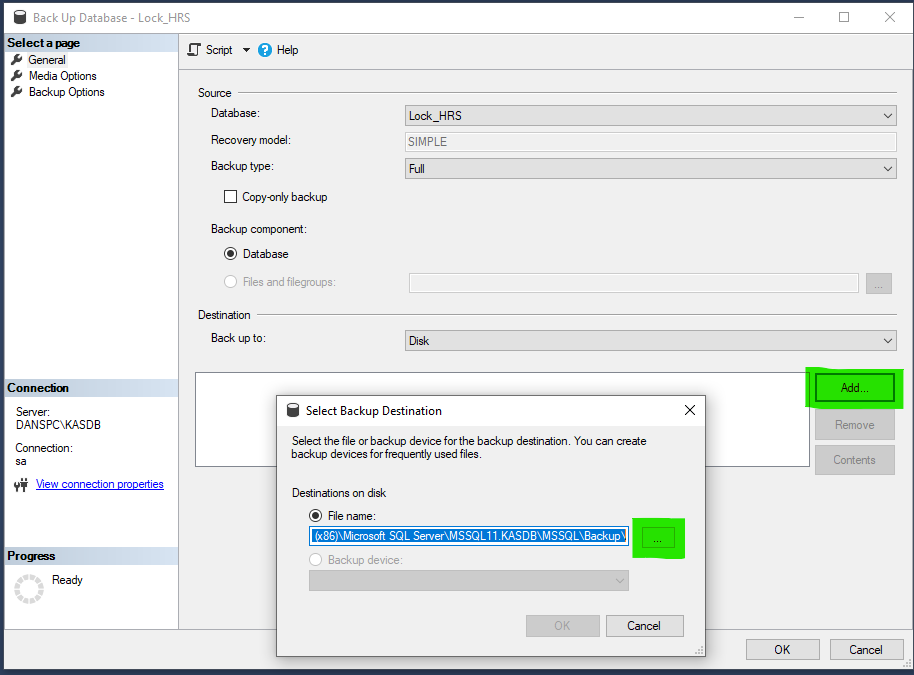
Ensure you repeat the process for both the Lock_HRS and LockDB_PMS databases.

Note: You may need to add ".bak" to the end of the file. If it does not appear during restoration, simply rename it and add the ".bak" extension to its name.
5) Once you have saved the files, install Lock-S on your new computer in accordance with the instructions
6) Once all the prerequisite applications are installed on the new computer, open the SQL Management Studio (see: step 1) on the new computer.
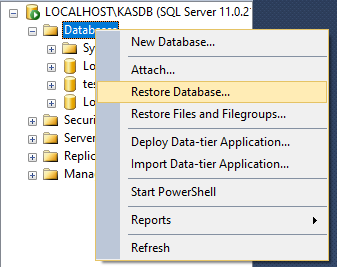
7) Right Click "Databases" -> "Restore Database"
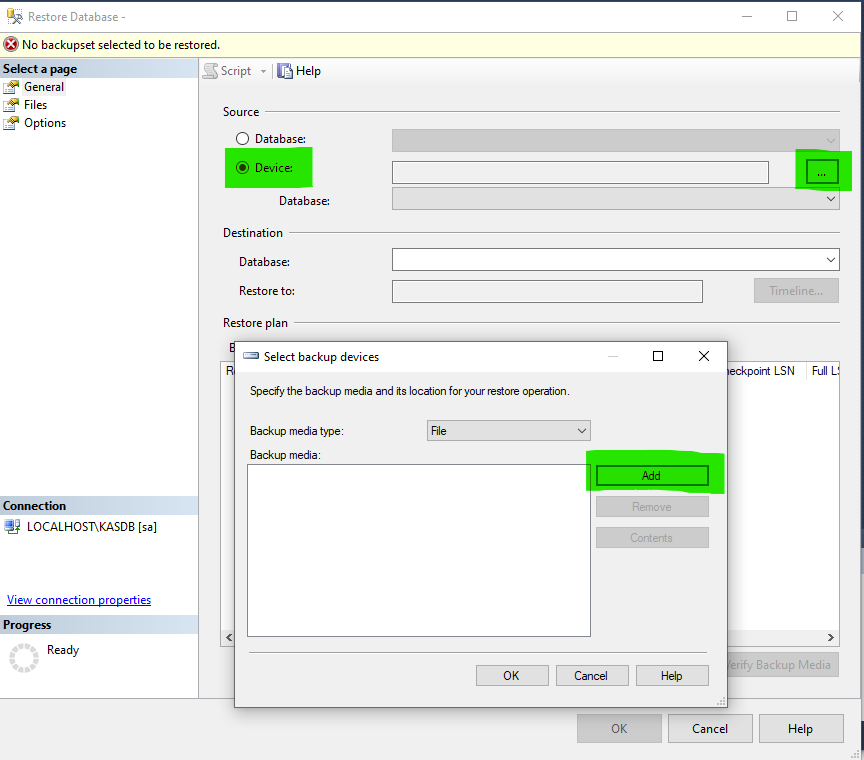
8) Select "Device", then the 3 dots ("…") and then "Add"
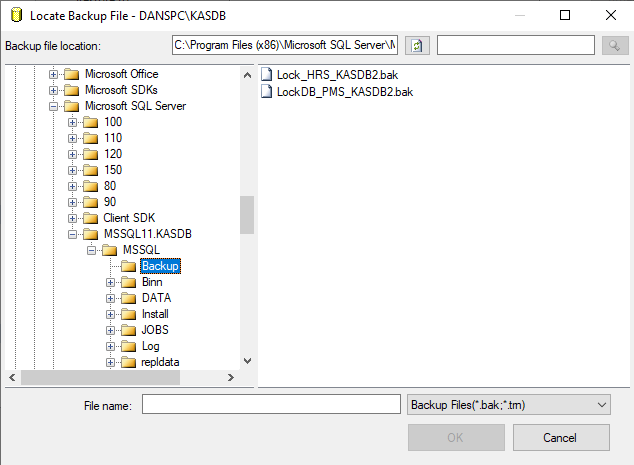
9) Navigate to the location of your backup file and select it, then click "Ok"
10) The Backup file should appear on the list. Click "Ok".
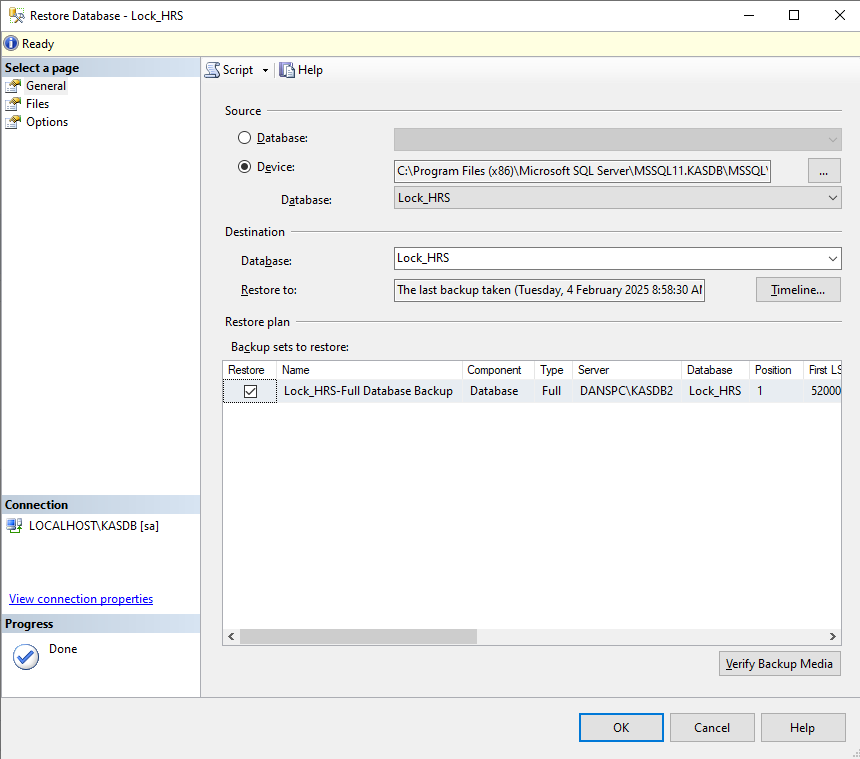
Ensure you repeat the process for both "Lock_HRS" and "LockDB_PMS" files.
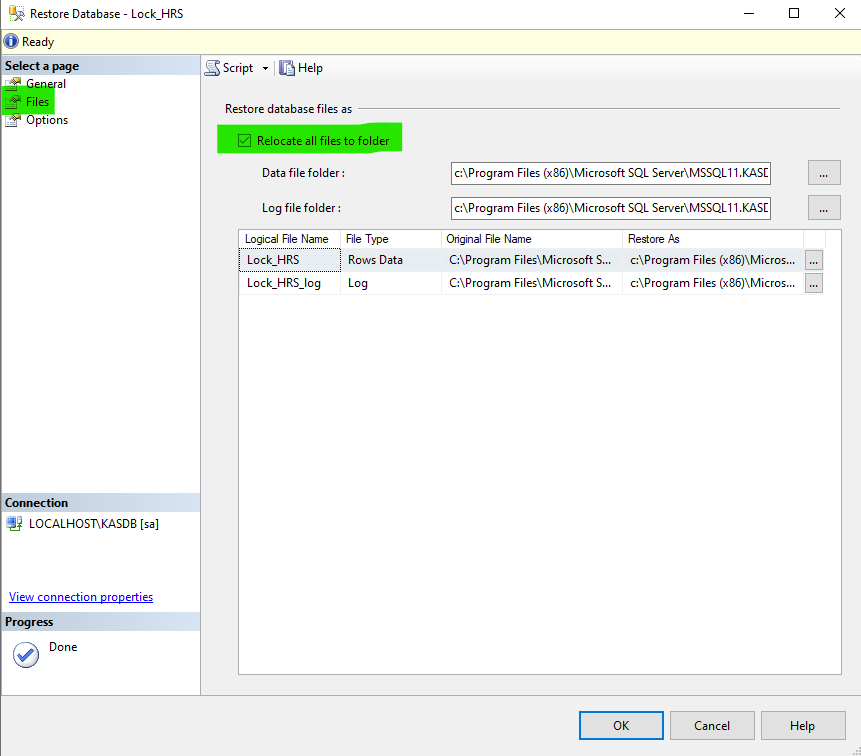
! ) If you get an error: Select "Files" and tick "Relocate all files to folder"