Premise:
This guide will instruct you on how to install your LMS to Lock-S hardware upgrade.
Instructions
Step 1)
Remove your current locks from the doors.
Step 2)
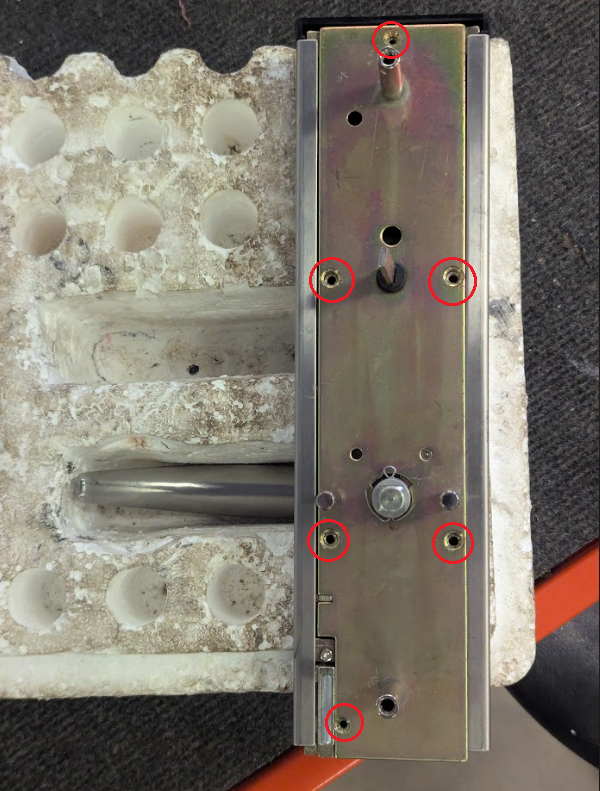
Unscrew the back plate on the front-facing part of the lock. The screws are in the indicated locations:

Note: You may need to also unscrew your battery compartment and put it aside.
Step 3)
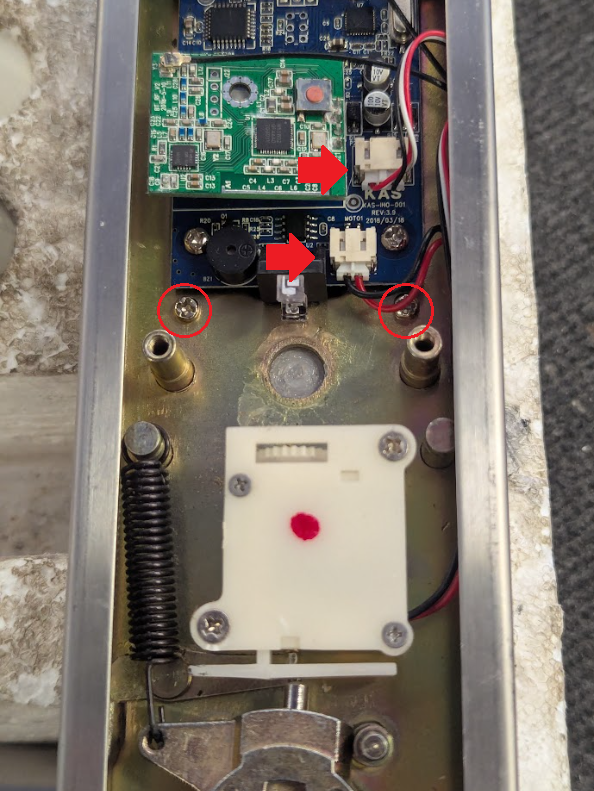
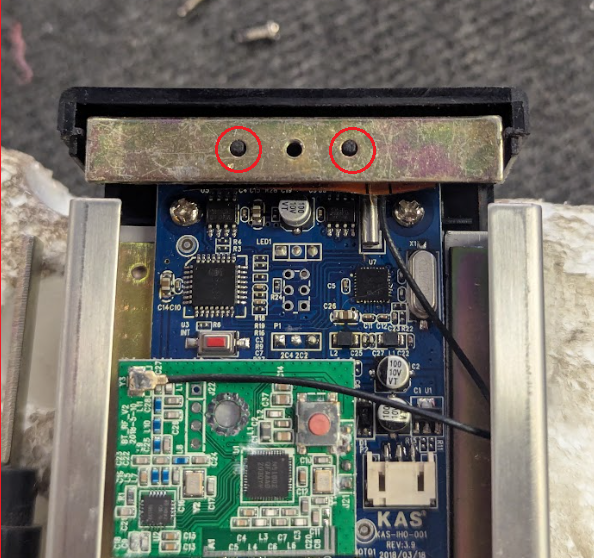
Unscrew the 2 screws under the motherboard which hold the faceplate in place, and then disconnect the marked cables.
Note, your motherboard may look slightly different, but the screws are in the same location.
Step 4)
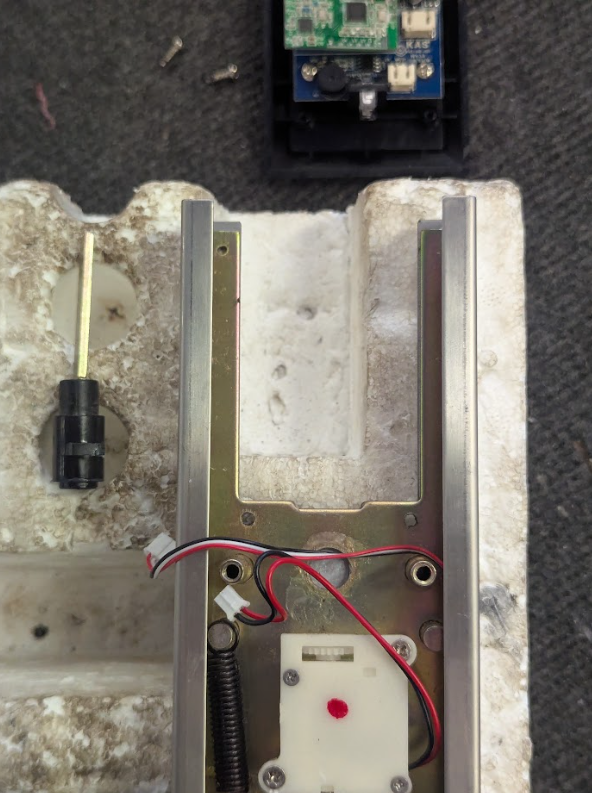
Pull up on the front faceplate, it should slide out.
Step 5)
Insert the new (pre-assembled) faceplate.
Note: Ensure you move the metal bar from the old faceplate to the new one, and place it in position on the 2 small pins.
Step 6)
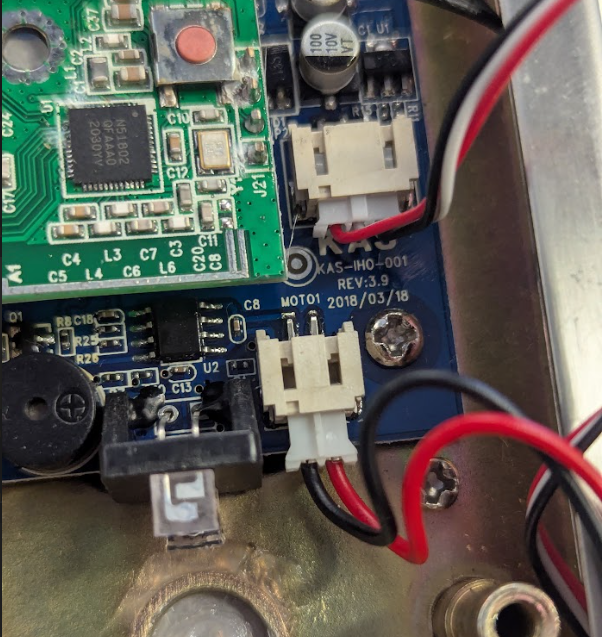
Screw the motherboard back into place in the same location you unscrewed at step 3, and insert the cables back in.
Ensure they are all the way in.
Step 7)
You may already have an old battery terminal.
The upgrade kit comes supplied with a new terminal and battery chamber.
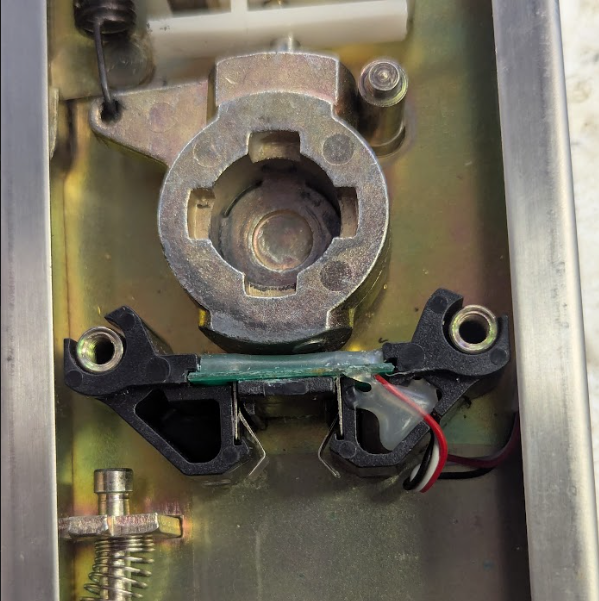
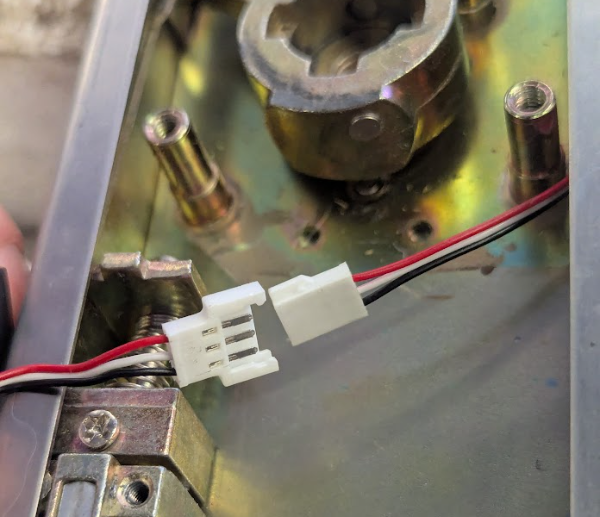
Locate the battery terminal at center of the lock, pull it out, and disconnect it.
Step 8)
Connect the new battery terminal and put it in place as in (see: Step 7).
Step 9)
Insert the new battery compartment
IMPORTANT:

NOTE: If you were given white firmware cards with the lock, read the added instructions at the bottom of this page before proceeding to step 10.
Step 10)
Put the back plate of the lock back, and screw it into place (see: Step 2). Ensure that the privacy latch is inserted back into its slot.

Important! Ensure the spindle pin is pointed upwards when putting the back plate together.
See Image.
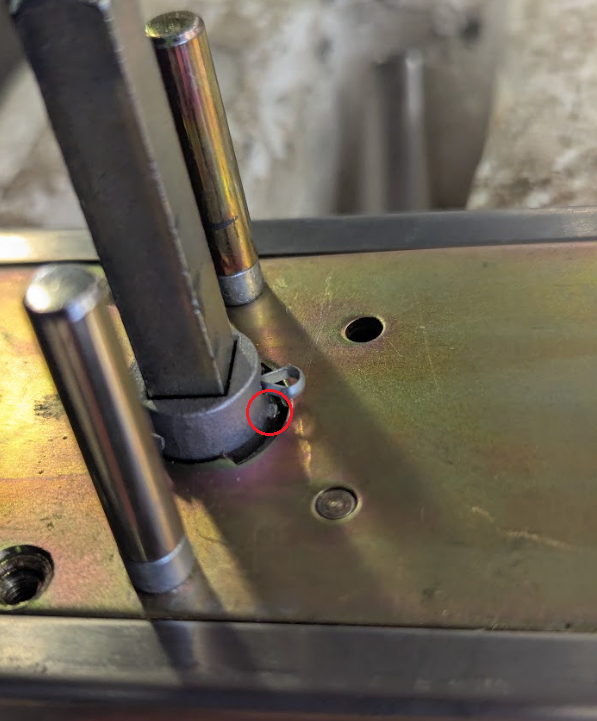
The lock should now be ready to be put back on the door.
Firmware Upgrade
If you were given cards with the lock, you need to change/upgrade the firmware before putting the lock back on the door.
To do so:
- Ensure that the lock is powered on.
- The cards are numbered 1 to 5. Tap and HOLD the first card against the lock until a long beep is heard. Proceed to the next numbered card, and repeat until all cards are done.
- Once all cards are done, the lock will beep and the green LED will turn off.
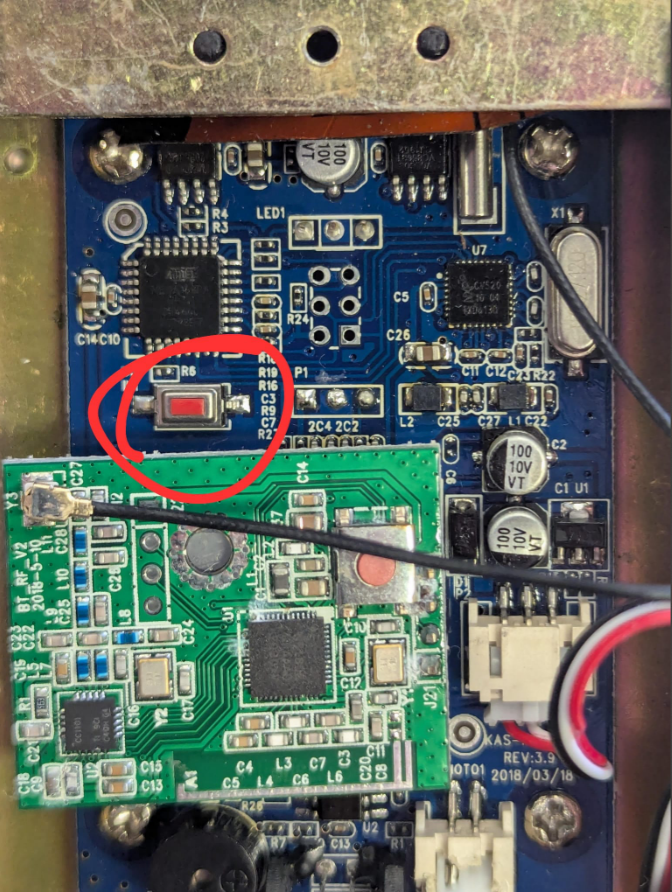
- Press and hold the RESET SWITCH before proceeding until the lock beeps (see image).
-