
Back to knowledgebase

Platinum Lock – Hardware Installation

<br> Note: If the lock is meant to be used with KAS Access - It is the job of the installer, as part of the installation process, to pair the lock to the customer's account and name it with an easily recognizable ...

<br>             
   

Info
Note: If the lock is meant to be used with KAS Access – It is the job of the installer, as part of the installation process, to pair the lock to the customer’s account and name it with an easily recognizable name (e.g. the unit number) 

Installation

1) By default, the lock is permanently in an unlocked (“open”) state. This is factory default, which means the installer can never lock himself/herself out whilst installing.

2) Remove all existing door hardware and cut the door to specifications provided.  Correct cutting dimensions and back set alignment is very important, ensure the door is cut to a high accuracy for best performance and durability.

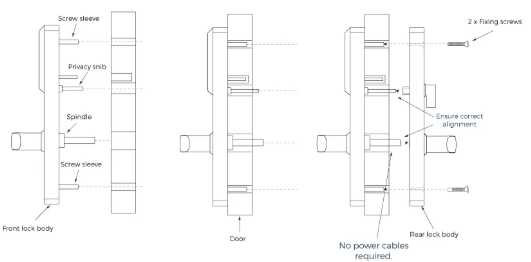
3) Install tubular latch or mortise latch loosely into the door, and place the front lock body into the door.  Ensure correct spindle alignment. Read the instructions on the back of the front lock body for correct spindle alignment instructions.

Alert
After installing the Tubular Latch, ensure any debris or dirt are cleaned out. Failure to do so may damage the latch and affect your warranty

WarningEnsure correct spindle alignment otherwise you may need to damage the lock to gain entry. Read sticker instructions on the back of the lock.

4) Place the rear lock body onto the back of the door making sure the snib spindle and latch spindle are inserted properly. It does not matter which direction the privacy snib spindle is placed when installing the rear lock body.

5) Insert fixing screws and tighten to a firm, but not over tight, fix.  Use a screw driver when tightening as you may damage the thread and screw sleeve.  It is very important not to tighten too tight.

Notes
Warranty does not cover locks that are damaged when installed with an electric screw driver.

6) Test both handles for smoothness and mimic a smooth swing of the door closing.  This ensures the lock and latch hardware is functioning and installed correctly.

Notes
the front handle can still open the door (“the door is always open”).  The lock will turn into an auto-locking state when a room number is programmed via Lock-S or paired to the KAS Access app

7) Take the two mechanical keys provided and label them to the designated door number.
8) Pair the lock to the client’s KAS Access account (if they’re using one) and name the lock in accordance with the door/room it is installed on (e.g. Room 13)

Maintenance

Please ensure that the latch is lubricated using a PTFE-based dry lubricant and check its operability every 6 months, and re-apply lubrication as required.


InfoIt is up to the installer and client with what they wish to do with these keys.  Make sure the keys are kept safe as these keys are the last point of redundancy to open the door in an emergency.
Info**It is very important to label and correctly store the mechanical override keys for each lock as they are unique and unalike for each lock.**

Related articles

5 Sep 20253 min read

Scheduling Keys

Premise This documentation will explain how to schedule keys using the "Frequency" function in KAS Access It will allow you to have a key for a particular user active on a certain schedule. Examples: Example 1: "MaintenanceUser" needs access to ...

4 Apr 20251 min read

Getting your RMS Custom Field Name.

Premise Once you're ready to integrate your RMS account with KAS Access, you will need your RMS "Custom Field Name" in order to be able to receive PINs back from KAS (if you wish). This means that once a PIN is generated, it will be sent back to the ...