
The log is collected as a text file and is saved to your PC directory (C:Program FilesKAS) or (C:Users kas-supportAppDataLocalVirtualStoreProgram FilesKAS)

change “Kas-support” to your PC account name to find your PC account name click on the windows icon and hover your mouse on the account icon as shown below
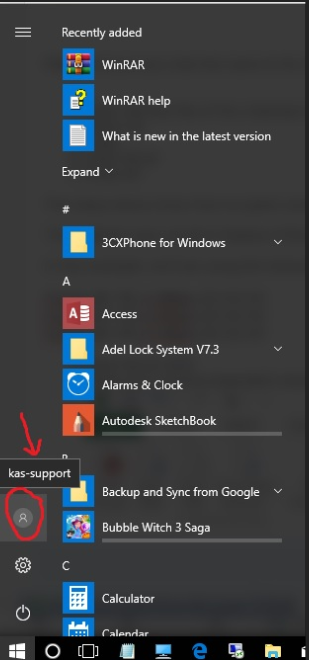
Please ensure you note the name & file location when you export tit from the software.
- Open the text file of the collected records
- Select all
- Copy
- Open Excel
- Paste All
The steps below show how to paste comma-separated values directly into an Excel 2013 file.
This method uses a built-in feature of Excel 2013 and does not require creating a temporary CSV file.
In this example, we’ll be using the following list of comma-separated values
Sale1,$1.99,3:00pm,12/12/12
Sale2,$1.49,3:05pm,12/12/12
Sale3,$5.99,3:10pm,12/12/12
- Open Excel 2013
- Paste your comma-separated values into the document. They will automatically fill into a single column over multiple rows, .e.g.

- Select the row with the values (or select all the values)
- Open the ‘DATA’ tab then click on the ‘Text to Columns’ button

- A window will open with a wizard that’ll help you turn the comma-separated values into a properly formatted Excel document

- Click ‘Next’
- Under ‘Delimiters’ make sure the correct setting is selected that represents how your data is separated. If it’s correct, you’ll see lines between each row of data

 Ensure you select Text
- Click ‘Next’ then ‘Finish’
- You should now have your data correctly formatted into columns
