
Premise
This guide is intended for computers purchased after September 2025 as they are not compatible with the previous version of SQL Server 2012

The first step when installing Lock-S software is to install the server. Follow the steps below. If you get stuck, support is available during Business Hours.
Note: While KAS makes the best effort to assist with the installation of SQL Server, due to system variance and non-standard installations, a complex installation scenario may incur charges as per our IT Policy if the installation is not a part of the original purchase of locks.
Installation Steps
Step 1) Download MS SQL 2022 Express and SQL Management Studio
Click here to download SQL Server 2022 Express
Click here to download SQL Management Studio
Step 2) Install SQL Server 2022 Express
Run the SQL Server 2022 Installation file, select "Basic" in the window that appears
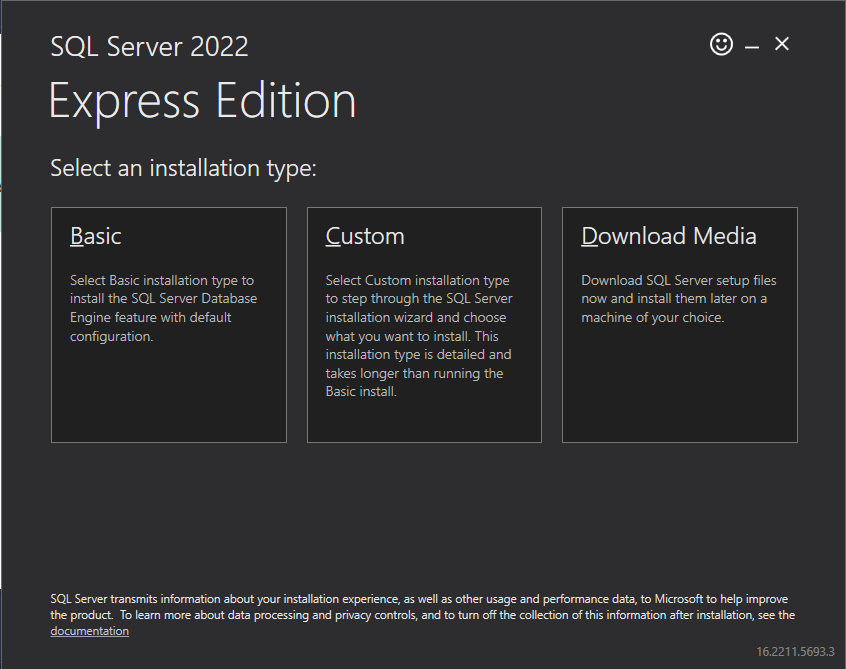
Proceed with the installation by accepting any terms & conditions, and clicking "Next" until the installation begins.
It will download the files required.
2a) Select "Customize" when the installation is complete
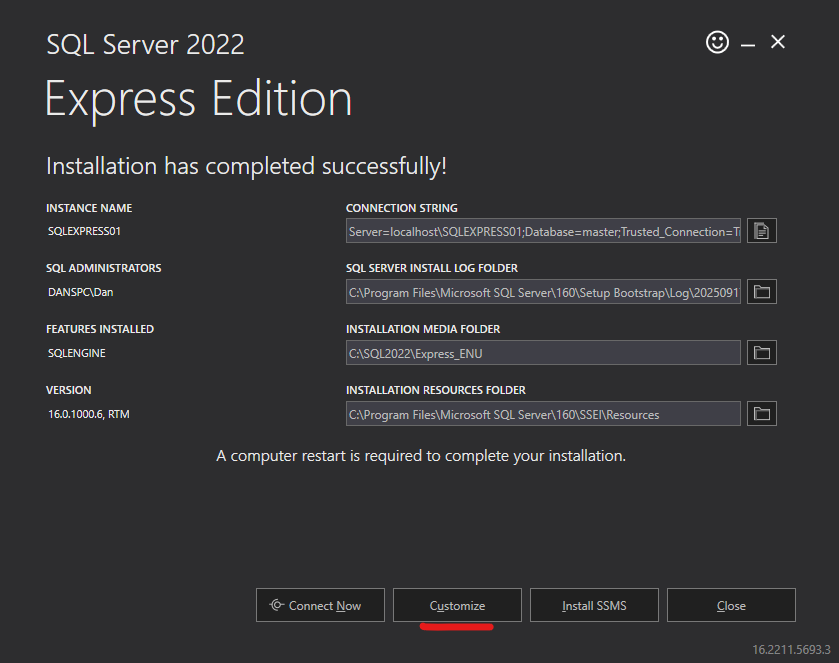
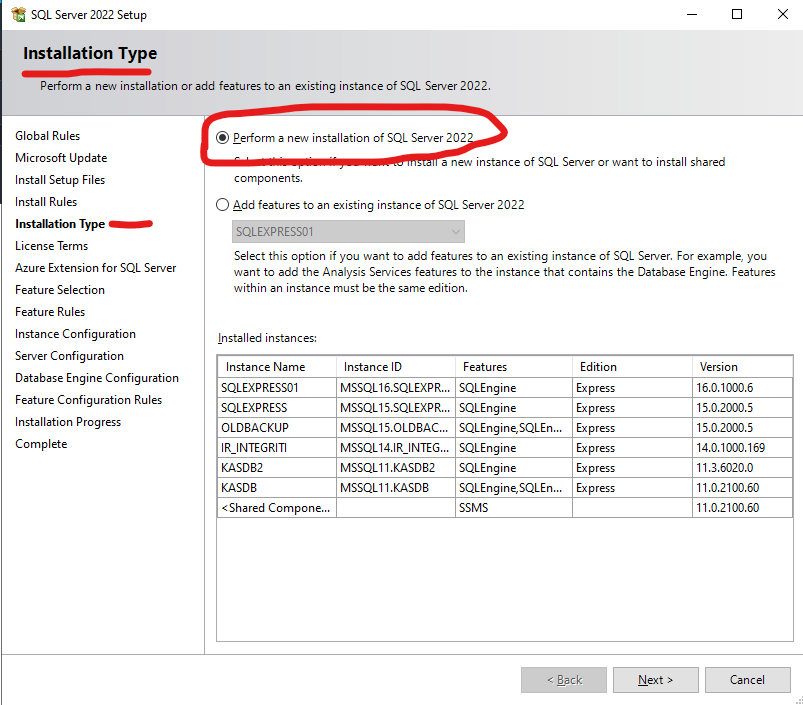
2b) Click "Next" until you reach "Installation Type" and then select "Perform a new installation"
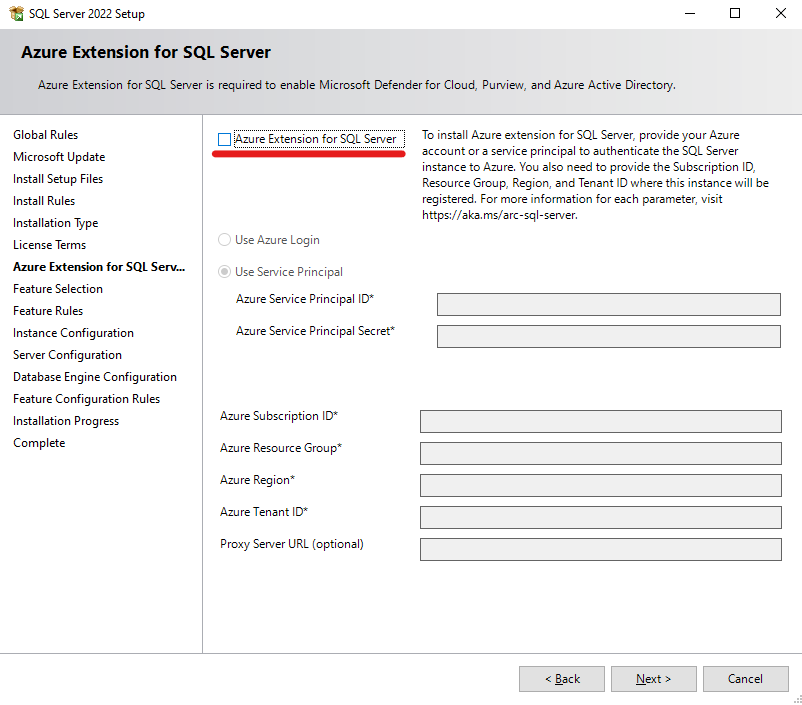
2c) When reaching "Azure Extension", uncheck "Azure Extension for SQL Server"
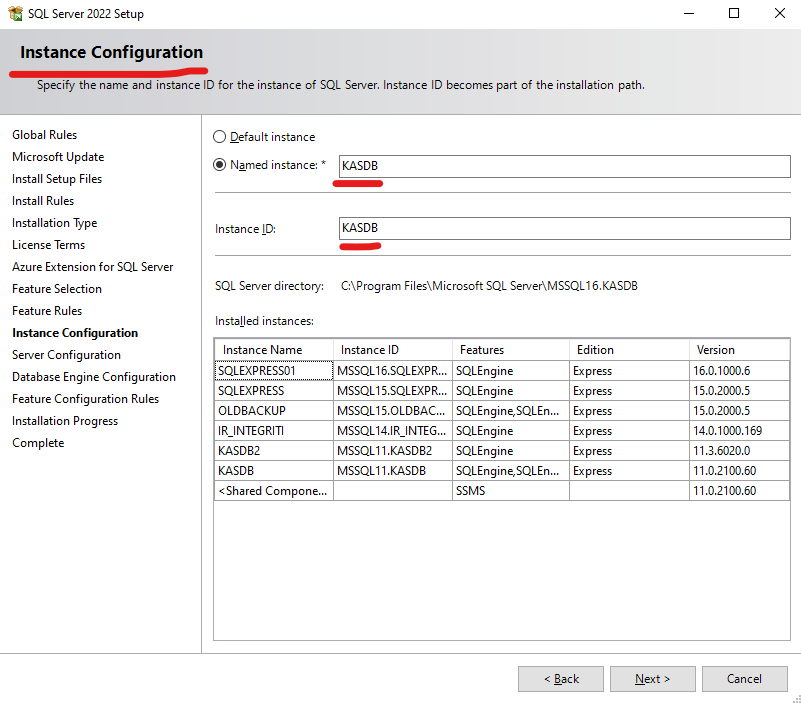
2d) When reaching "Instance Configuration" name the instance "KASDB"
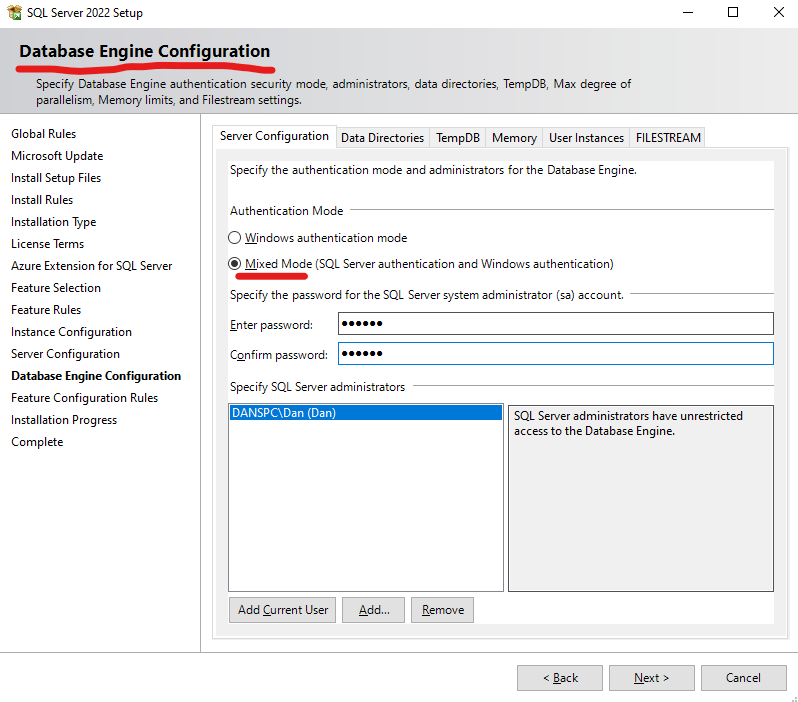
2e) When reaching "Database Engine Configuration" select "Mixed Mode" and use "kas123" as your password.
Click "Next" and wait for the installation to finish.
Step 3) Install SQL Management Studio
Run the SSMS Installation file, and wait for the download to finish.
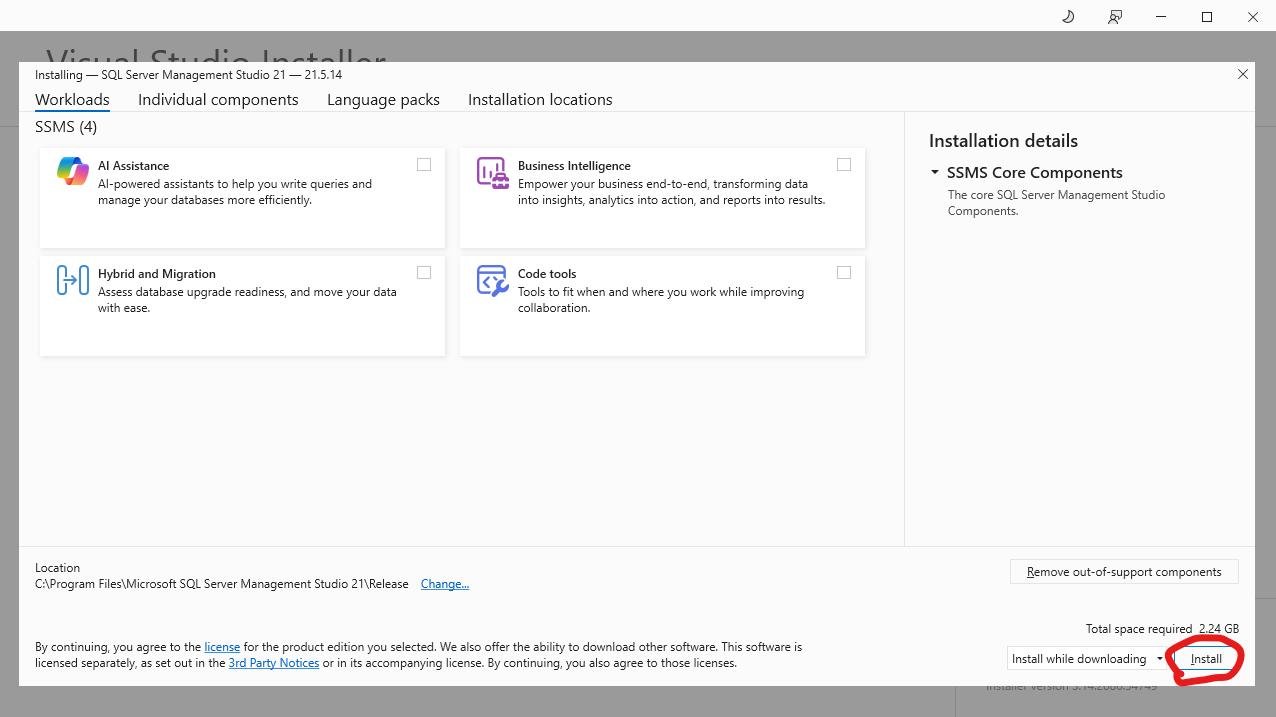
3a) No need to select anything. Simply choose "Install" on the bottom right.
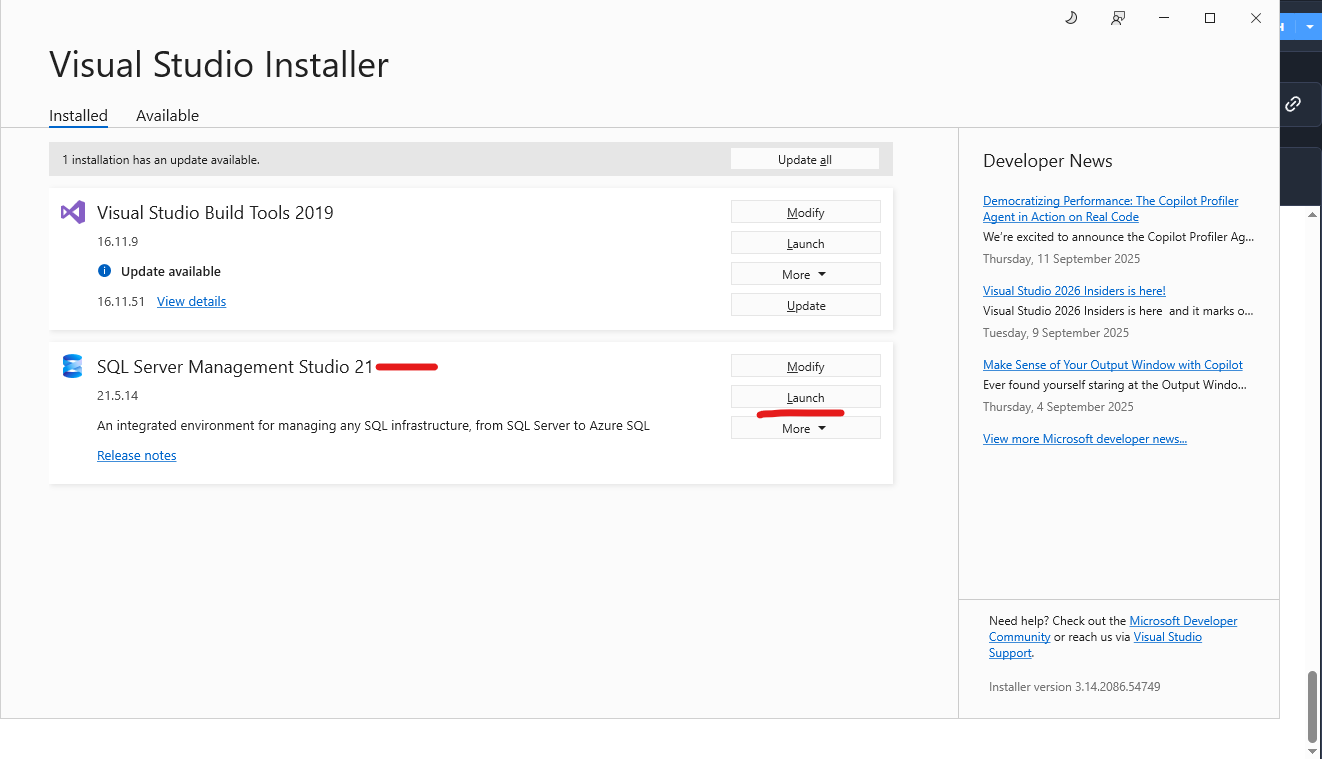
3b) Once the installation is complete, you can verify your configuration by pressing "Launch"
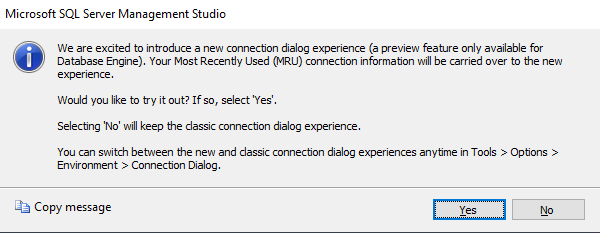
3c) Choose your Connection Dialog style (either option is fine)
3d) Put in the default credentials and click "Connect"
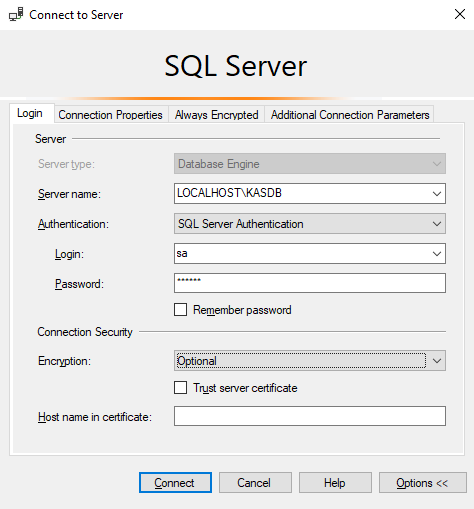
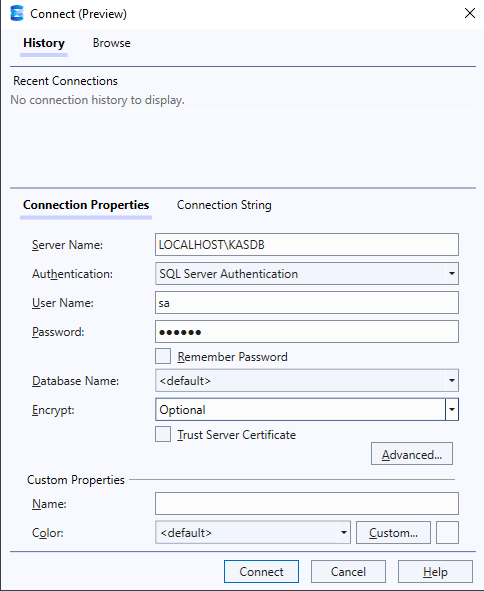
Server name: LOCALHOSTKASDB
Authentication: SQL Server Authentication
Login: sa
Password: kas123
Encryption: Optional
If the connection is successful, your installation is working as intended.