The first step when installing Lock-S software is to install the server. Follow the steps below. If you get stuck, support is available during Business Hours.
Note: While KAS makes the best effort to assist with the installation of SQL Server, due to system variance and non-standard installations, a complex installation scenario may incur charges as per our IT Policy if the installation is not a part of the original purchase of locks.
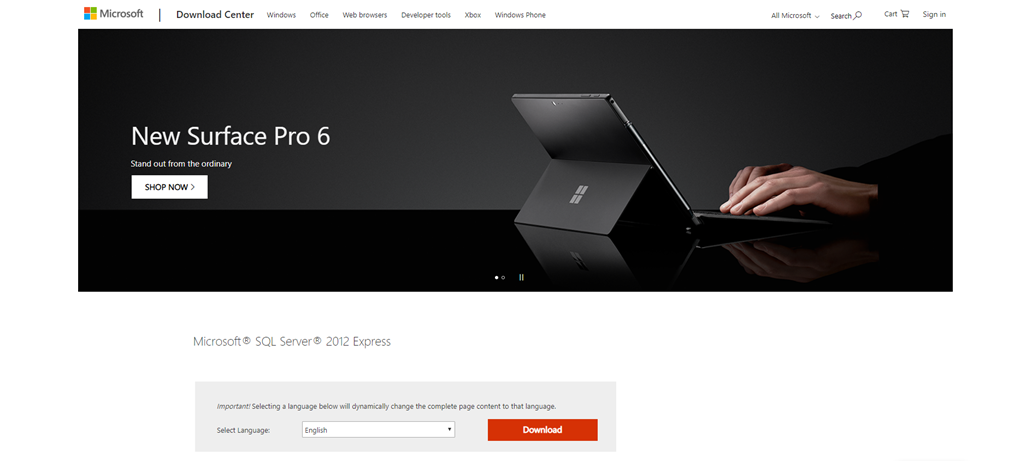
Step # 1 Download SQL
- Click on the URL to Download the SQL setup file. SQL Server 2012
- Select Language and Click Download. You will be prompted to select the file now.
- Notice: New computers purchased on or after September 2025 are NOT compatible with this process. Follow this link for new computers.

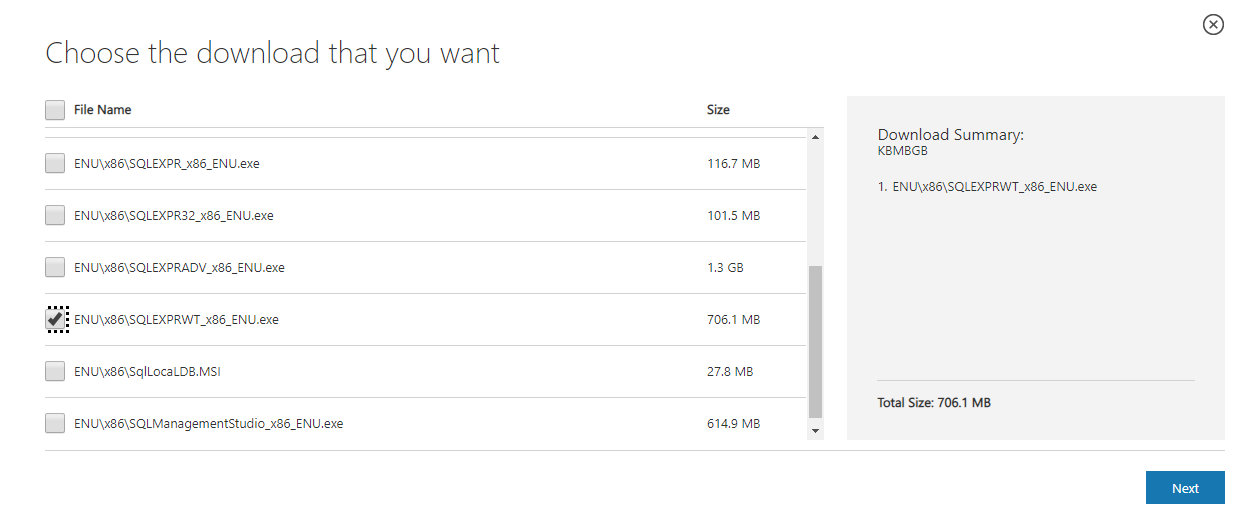
Step #2 Select the file to download

Most computers these days have an x86 processors, however, some may have be x64. If you know the process select accordingly.
If you don’t know the processor try selecting 86 first. If this is incorrect it will notify you. then you can choose x64
- For x86 Select: ENUx86SQLEXPRWT_x86_ENU.ex click Next. The download should start automatically. For x64 processor:
- For x64 Select: ENUx64SQLEXPRWT_x64_ENU.exe and click Next. The download should start automatically. For x64 processor:
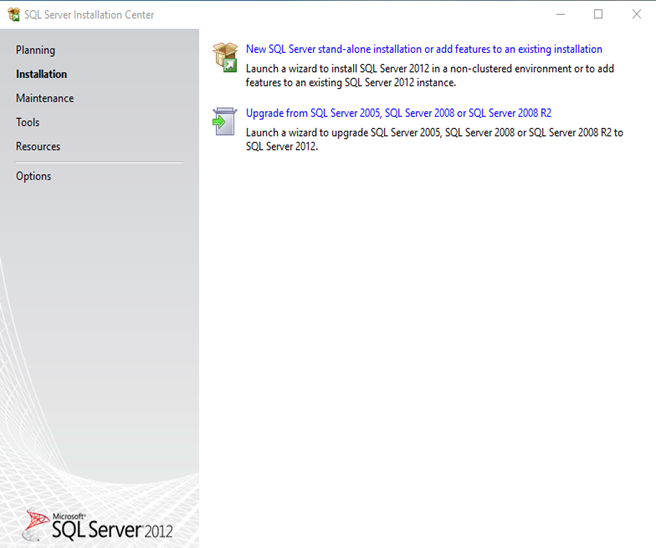
Step # 4 Install SQL
1. After the file has downloaded. Open the folder where you download the file and double click on it to start installing the SQL.
2. Click on: New SQL Server stand-alone installation.
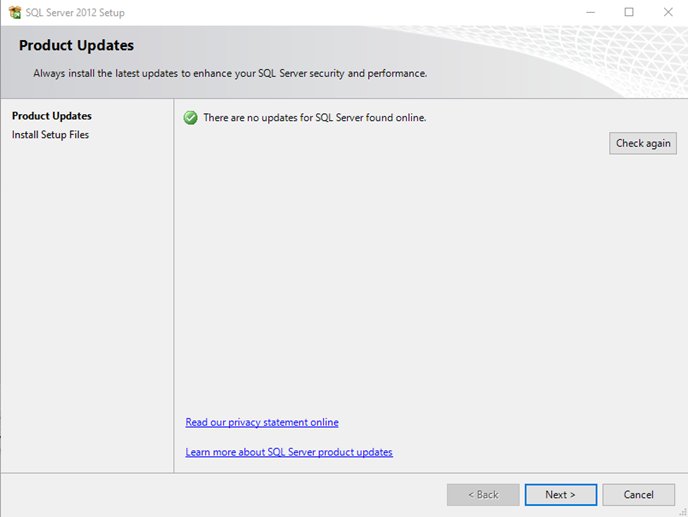
After clicking next, SQL will automatically check for updates. After finish updating click next
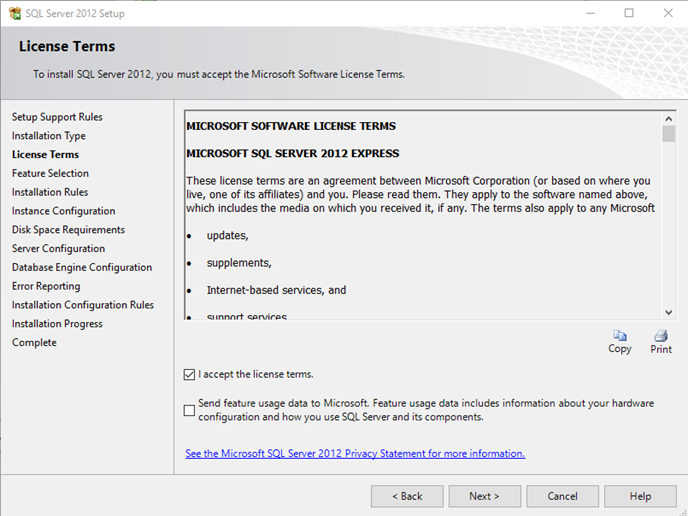
Step # 6 Accept Licence Terms
Click on the box to accept the license term and press next again.
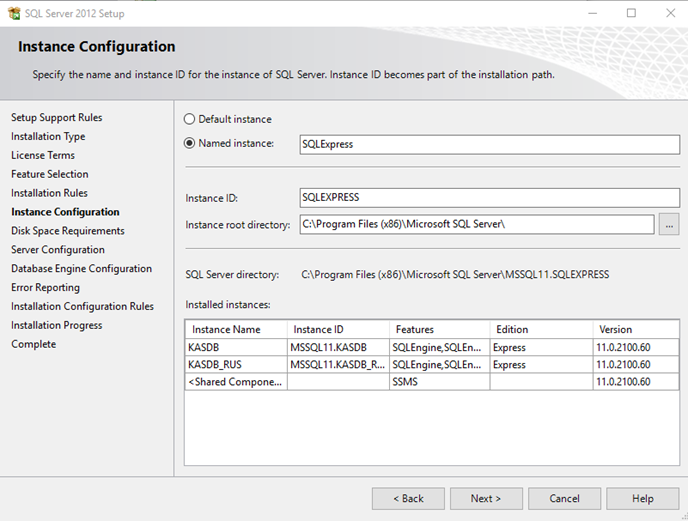
Step # 7 Instance Configration
Now Keep clicking next until you see the following Screen.
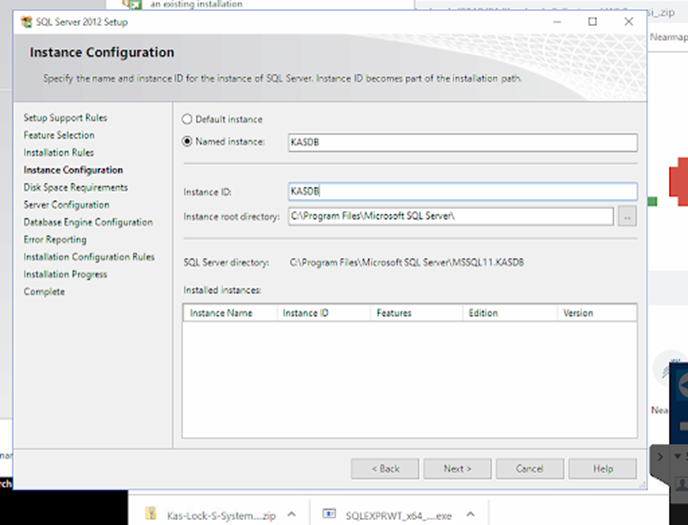
Step # 8 Name the Instance
- Change Instance Name: KASDB
- Instance I.D: KASDB
- Keep clicking next until you reach Database Engine Configuration
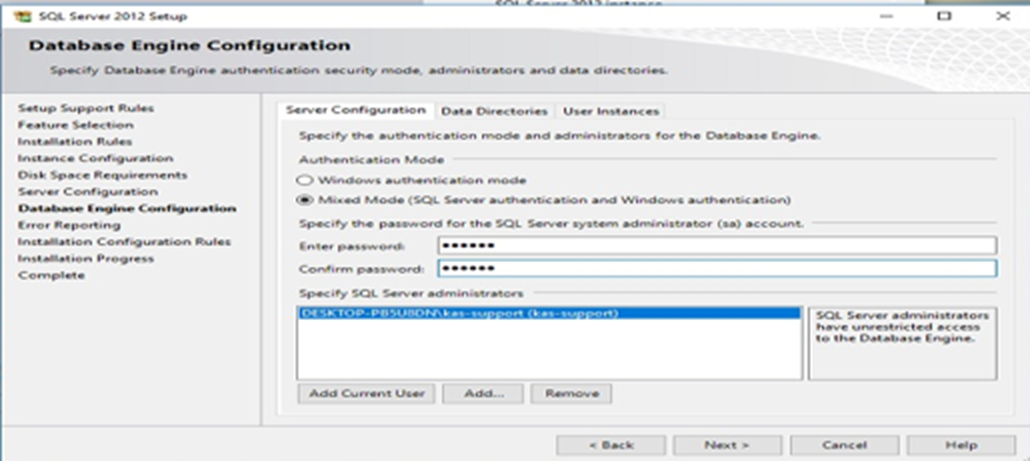
Step # 9 Database Engine Configuration
Server Configuration
- Authentication Mode: Mixed Mode
- Password: kas123
- Keep clicking next until you reach the Complete page.
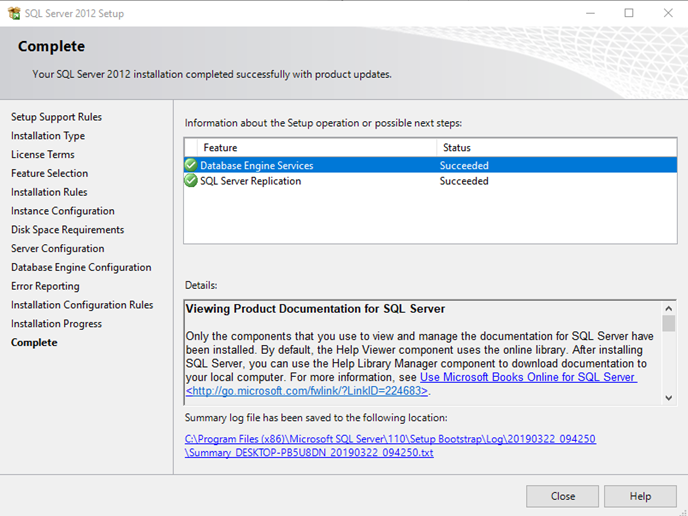
Step # 10 Install Complete
Click Close to compete