
Premise
This Troubleshooting guide will have a collection of solutions for problems that relate to the LOCK-S System
Please refer to the Table of Content if you’re looking for a specific issue.
Troubleshooting
Master Card works but not Guest Cards
Solution 1:
- Issue a new Clock Card and present it to the door
- Do not reuse old clock cards. They have to be re-issued (you can overwrite the old card).
-
Click Data, select Common Door
- Ensure your door appears there, and create it if not
- When issuing a Parameter Card, select Door, then your common door
- If the door appears under the Lock tab, it is not a common door
- Re-issue or renew the master card
- To renew the master card, present it to the reader
- Select Read then change the End Date and click Modify
- Unscrew the small screw at the bottom of the unit and remove the back
- Press and hold the black button on the main board (not the small one) until it beeps
- Present the System Card, and allow the ACR to reset (this may take a minute)
- Continue configuration as normal
- Ensure your System Card has a Reset Function (place the card on the reader, select Read, and then ensure the "System card with clear function" is enabled. If not, enable it, and click Modify
- Present the card to the door until you hear an ascending tone. This indicates the door has been reset.
- Present the card once more until you hear a single beep, then immediately remove the card.
- Present the parameter card.
- Remove the lock from the door and physically reset it via the switch (as shown in this guide).
- If there is no access hole for the switch, you may need unscrew the back plate.
- Present the System Card until you hear an ascending beep
- Present the Parameter Card.
- Ensure your System Card has a Reset Function (place the card on the reader, select Read, and then ensure the "System card with clear function" is enabled. If not, enable it, and click Modify
- Present the card to the door until you hear an ascending tone. This indicates the door has been reset.
- Present the card once more until you hear a single beep, then immediately remove the card.
- Present the parameter card.
- Remove the lock from the door and physically reset it via the switch (found under the Factory Reset section in this guide).
- Present the System Card to the door until a single beep is heard.
- Present the Parameter Card
- See the Full Guide (Clock Cards)
- OR See here if you’re using a PDA
- Plug PDA into the computer through supplied USB->USB micro cable
- Click System>PDA from top menu bar
- On the ‘PDA’ screen click the following buttons
- Clear PDA
- Init PDA
- Download Data
- Clock
- If you do not get a ‘Successful’ message on all of the buttons; try clicking the button again.
- The cable connection between the card reader and the computer
- Re-open Lock-S
- Try issuing a card
Solution 2 (Common Doors):
If the issue presents on a common door, ensure that the door is configured as a common door, and not a room door.
Guest Card works but not Master Cards
(ACR) Does not accept Parameter Cards
The unit is likely not in Lock-S mode.
(Platinum Lock) Door does not accept Parameter Cards
Solution 1:
Solution 2:
If neither of these options work, the lock is likely not in Lock-S mode.
Please contact KAS Access.
(NEO Lock) Door does not accept Parameter Cards
Solution 1:
Solution 2:
Green Light is periodically flashing on the door
Set the clock on the unit.
PDA Error Message – "Fail to Write"
Please try the following:
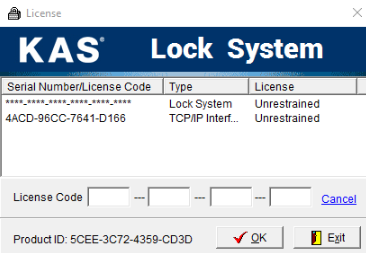
"Invalid System Clock" when opening Lock-S
1. Click "OK" and you should be presented with the following screen:
2. Copy the license key that appears in the window into the blank squares and click "OK"
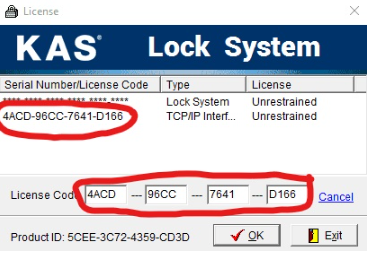
3. Click "Exit" and re-open Lock-S
"Fail to open serial port" when opening Lock-S
The card reader is not recognized by the computer.
Solution 1:
Solution 2:
In Lock-S
- In the system Menu, select "System" and then "System Parameter"
- Ensure the following settings are set:
- Encoder Type: MR-11U
- Encoder Port: USB
- Click OK and try issuing a card
- Press the "Phone" icon in the top toolbar
- Press "Check out"
- If the guest’s phone number exists, select it and click "Check Out", then re-issue their key
- If the guest’s phone number does not exist, ensure that the number hasn’t been issued to a staff member:
- In the System Menu, select "Report" and then "Card Info"
- Locate the room number by looking for the guest’s phone number in the "Mobile" column
- On the left-hand column, press "Staff Cards" or "Master Card" (try each one if you can’t locate the card)
- Press "Erase Phone"
- Locate the Room Number from step 6, select it, and press "OK"
- Re-issue the mobile key
- Ensure that the Lock-S Patch is installed (included in the installation files)
- If (1) fails and you are migrating from an older computer, install an older version of Lock-S