

Please Note:
Pincodes and RFID Cards from the Console will be removed when you reset the lock and will have to be added again after the lock is re-activated back to your Console account however, the data history records for the lock will be retained in the console. You will also have to edit the correct name of the lock so having all of these details copied and available will save you a lot of time.
Step # 1
Make sure your lock is factory reset and is in an initialise mode. To conduct a reset from standalone mode please press ** 888 888 # 199 #
Step # 2:
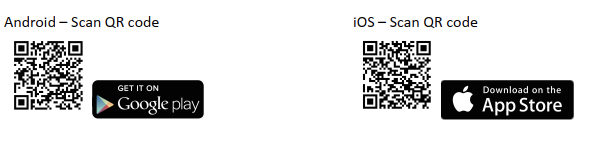
Download and install the Lockkeeper App from your App store (IOS Mobiles) or Playstore (Android Mobiles) or by using the QR code below.
Step # 3:
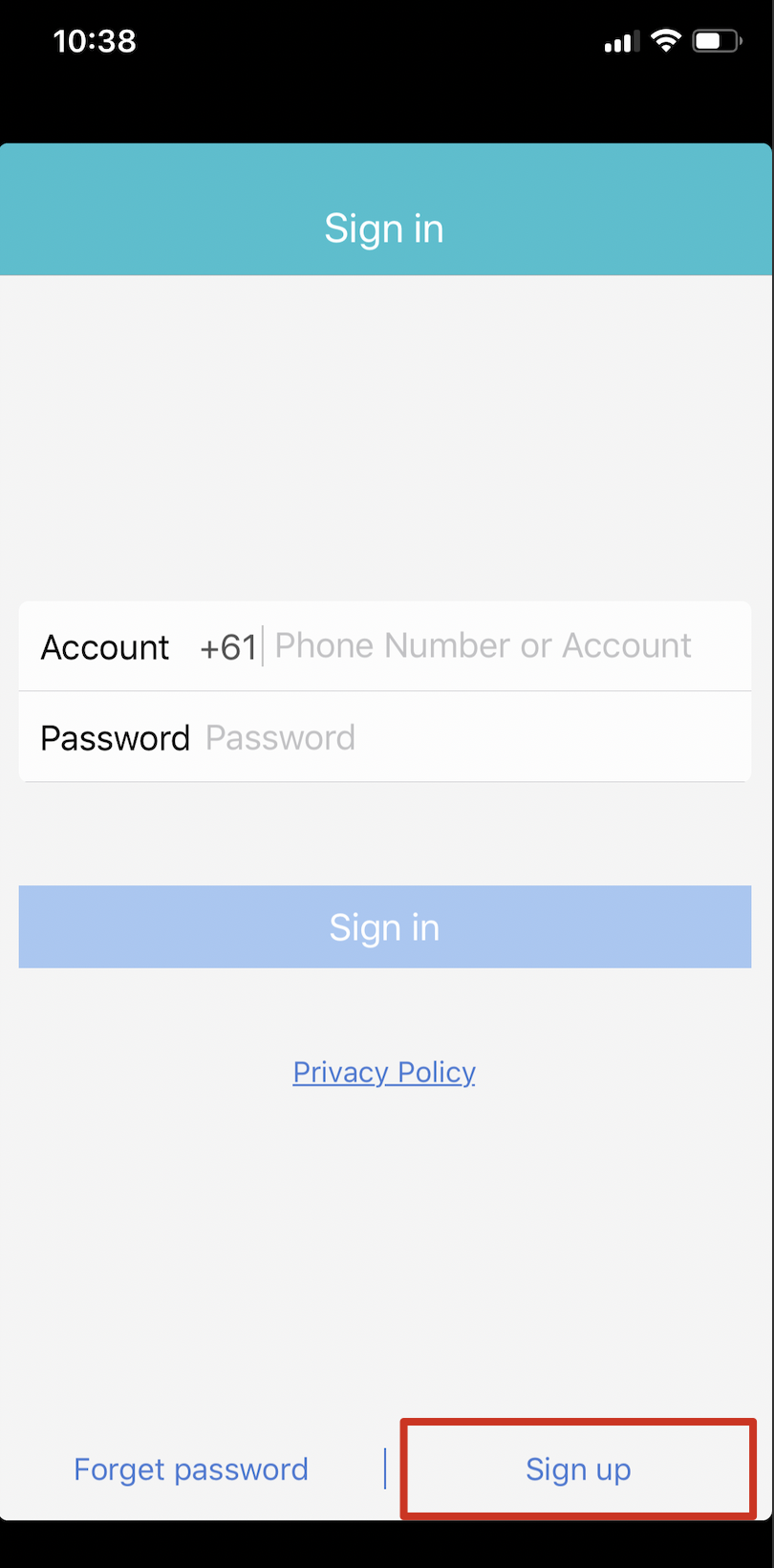
Click on Sign up and fill in the form.
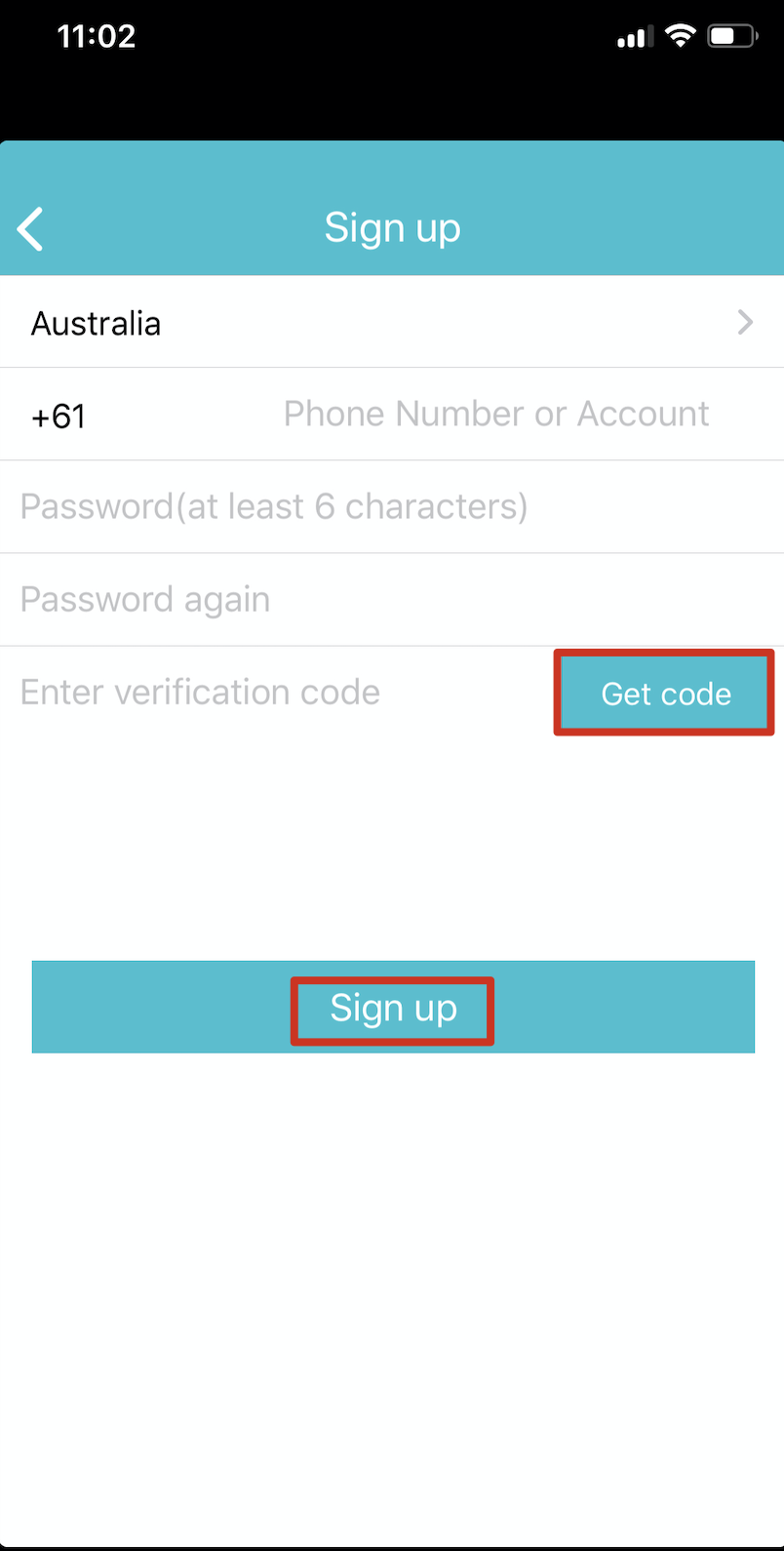
 if you don’t get any code on your number, it means you are already registered with Lockkeeper App. Please go back to the front page and try signing in.
Step # 4:
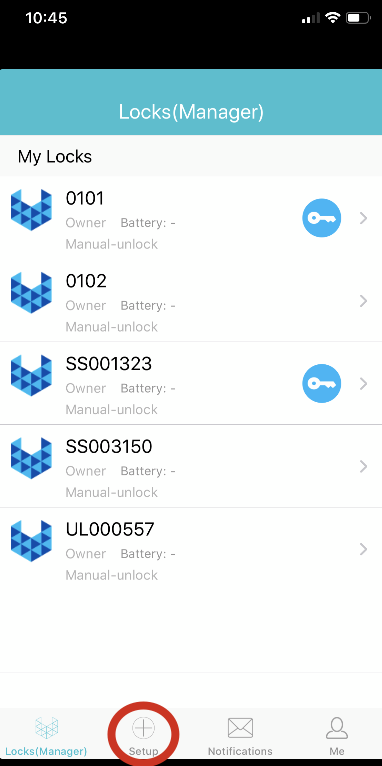
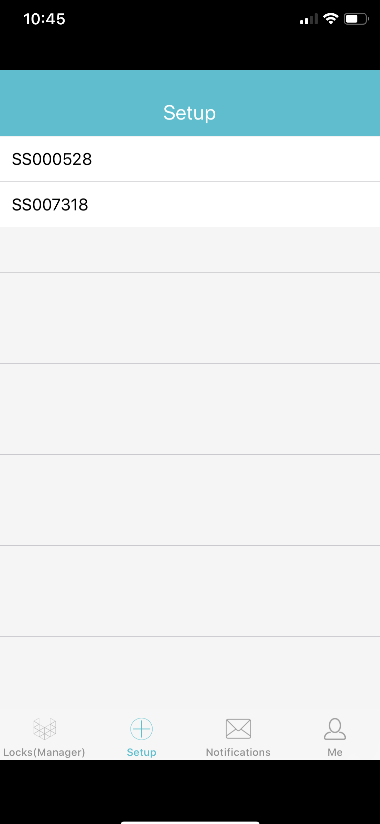
Click on setup and then setup again, this will show the list of all unactivated devices in the “Setup” list. Now click on the lock number “SS00####” that you are trying to update the firmware version of for “Setup Lock” select OK. (you will get an “activated message)
Step # 5:
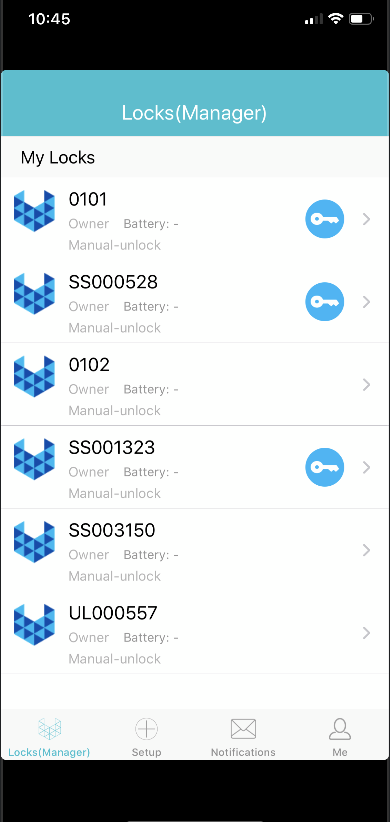
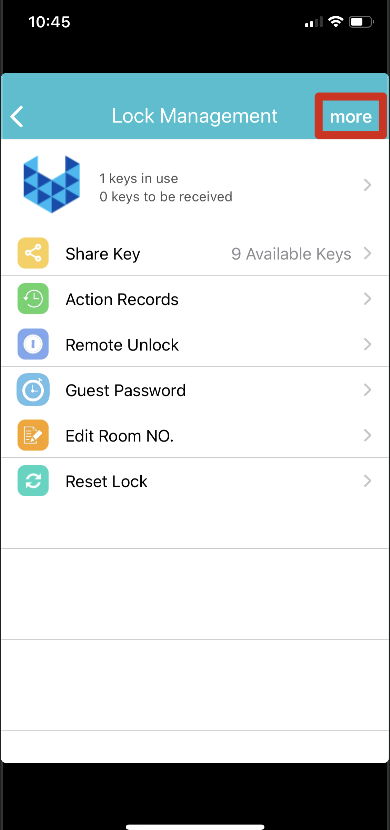
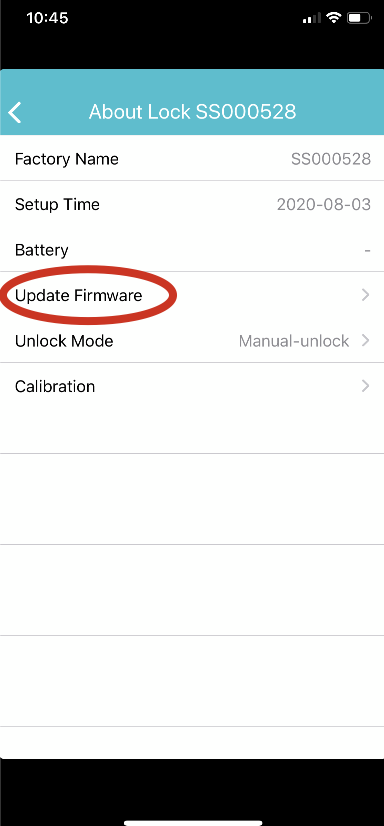
After activating the lock you will be able to see your activated lock in the locks (manager) list, 1) click on that lock number then 2) click on “more” and then 3) click on “update firmware”. You will see the current Firmware Version compared to the Latest Firmware version. (If you already have the latest firmware version then there is no need to update the firmware again so you can skip the next step).
Step # 6:
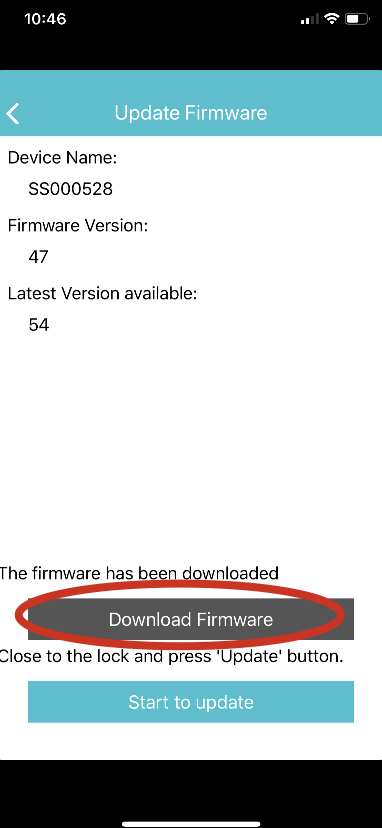
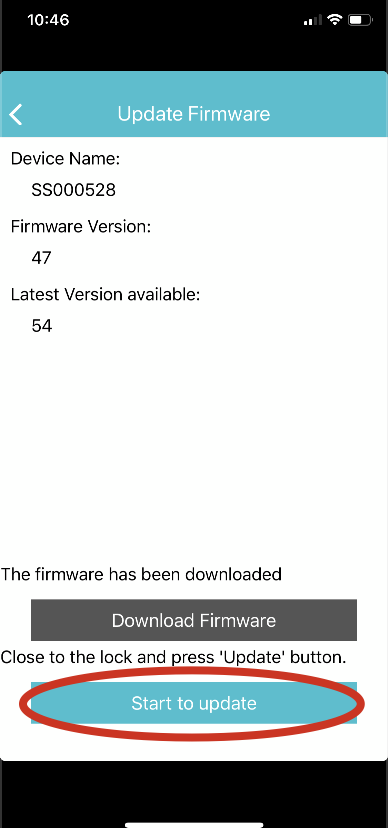
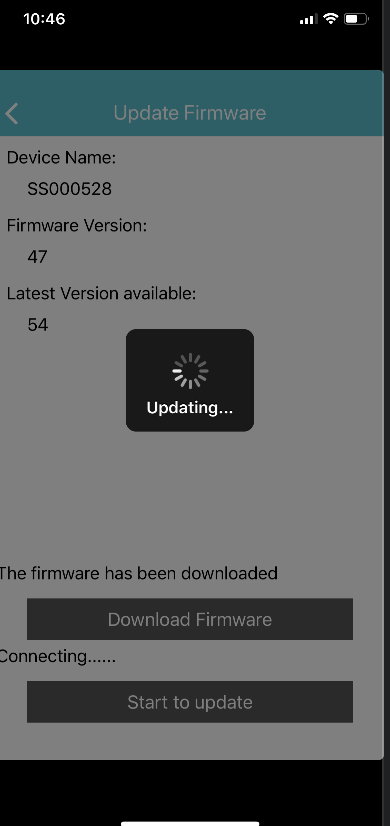
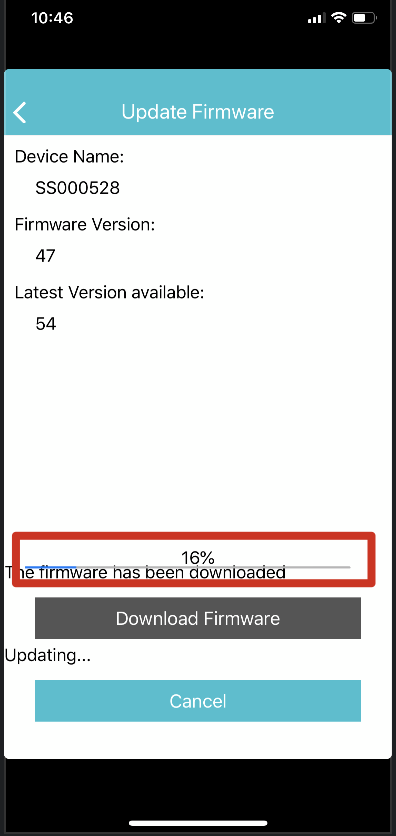
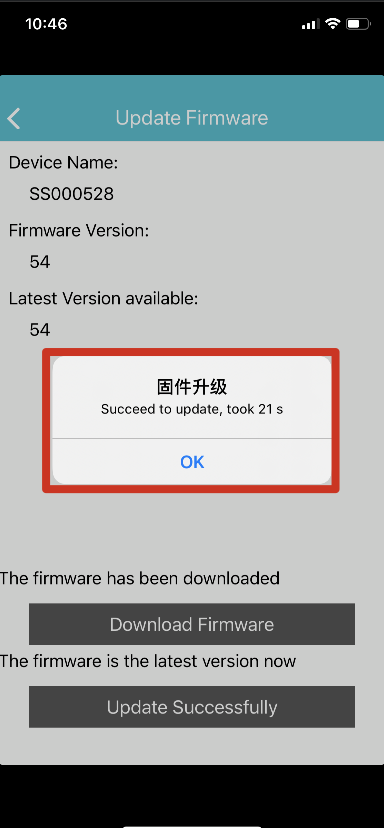
If you do not have the latest firmware then click on “download firmware” and then on “start to update”, the lock should start updating the firmware.
Step # 7:
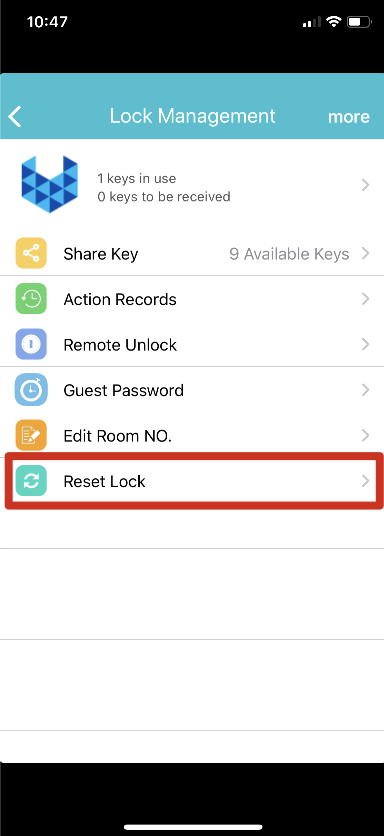
Now your lock’s firmware version should be latest as shown by the App. After that go on to the main menu and click “Reset lock”
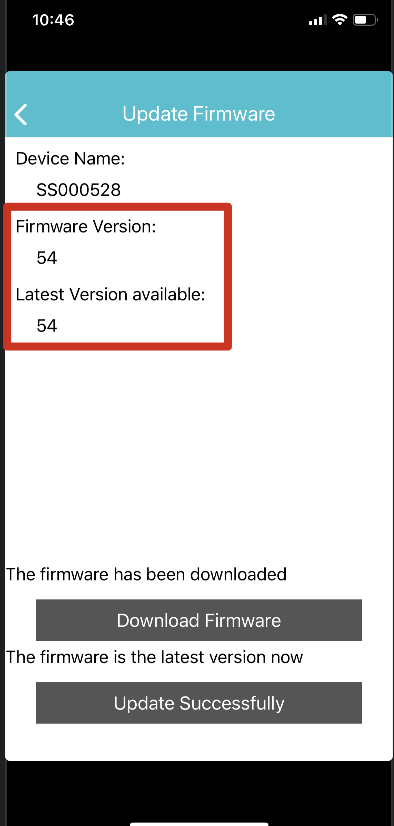

Congratulation your lock is now on the latest firmware version
Step # 8:
Now you would need to reactivate your lock from your KAS cloud App to manage it from your console account. Click here and just follow the appropriate items to reactivate the lock to your account and to rename it back to the original door name.
Note: Please conduct ** 888 888 # from the keypad of the lock to put it in standalone mode, before using any function from the console.
Now you should be able to see and manage your lock from the console however, it is highly recommended that you set the clock first before any other function. Also please remember to re-add your Pin codes and RFID cards as you had them set up prior to this firmware update.