
Premise
This documentation will explain how to schedule keys using the "Frequency" function in KAS Access
It will allow you to have a key for a particular user active on a certain schedule.
Examples:
Example 1: "MaintenanceUser" needs access to "Storage Shed" every week between Monday 9 AM & Tuesday 10 PM.
Example 2: "TempWorker" needs access to "Front Gate" every other week, between Monday 9 AM & Friday 5 PM.
Example 3: "CommitteeMember" needs access to "Conference Room" once a month on the 15th, between 9 AM to 3 PM.

Note: The "Master Card" option is not compatible with the Frequency feature.
Adding a Scheduled Key
Step 1)
Open KAS Access and navigate to the "Keys" section (if not already there)
Step 2)
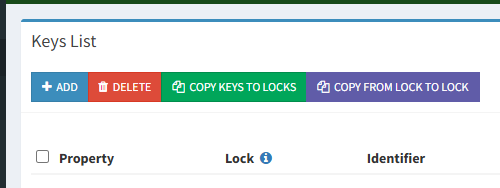
Click "Add" on the Top Left section
Step 3)
Select the Frequency (how often you want the same range of dates to be active)

Step 4)
Fill in the guest/user details as you normally would.
Step 5)
Select the start and end date in this frequency.

Example:
- If you want a key to be active from Monday to Thursday (9 to 5), select your current week’s Monday as the start date, then select the current week’s Thursday as the end date (see photo above).
- If the "End Date" falls on a day that has already passed (e.g. today is Friday but the end date is a Thursday), simply select next week’s Start & End days.
- The key will already be active (if Monday has already passed) or will activate on the Start Date (if Monday has not arrived yet). It will then remain active until the End Date.
- After the End Date has arrived (Thursday 5 PM, in this example), the key will expire from the lock and will be placed back on the lock on the next week’s Monday (or whichever frequency you selected)

Important: Do not select a date range that is larger than your frequency. For example, do not select Start and End dates that are 2 weeks apart if the Frequency is Weekly. Similarly, do not select Start and End date that are 3 months apart if your Frequency is Monthly.
Step 6)
Select the doors you want the key to applied to.

Step 7)
Click "Save" at the bottom of the page.
Removing a Scheduled Key
Keys with a schedule will continue to be re-created forever for as long as their frequency exists.
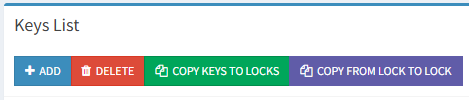
In order to stop a key from re-creating and end the schedule, select the key in the "Keys" list by ticking the box, and then select "Delete" at the top.
This will immediately delete the key from the lock, and also prevent it from re-creating at the next scheduled date.

Editing a Scheduled Key
If you have a Scheduled Key you wish to edit (e.g. changing the frequency or the date ranges):
Step 1)
Go to KAS Access and select "Keys"
Step 2)
Type in the PIN/RFID you wish to edit, or filter by all keys with "Frequency", and then click "Search"

Step 3)
Click the "Edit" button on the right hand side

Step 4)
Select the new frequency and date ranges you wish the PIN/RFID to have, and click "Save"
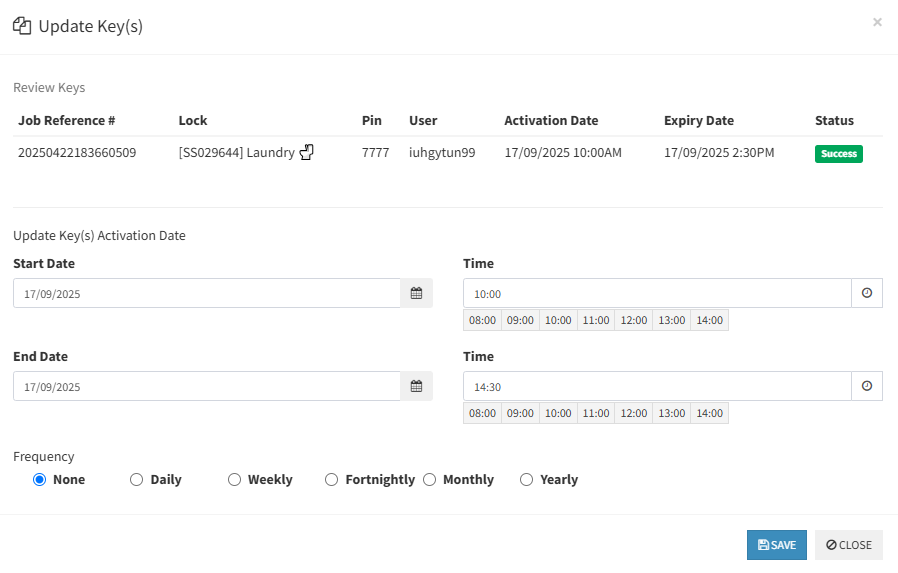
Note: When editing a key, all keys that were created alongside it on the same original Key Creation will also be edited.