
Setting up your Neo Cloud Lock/NEO ACR (Access Control Reader)

DO NOT SET UP THE DEVICE UNTIL YOU HAVE INITIALISED THE LOCK TO CLOUD MODE
Once you have power to the device, it will broadcast the SS number. The lock is in initialisation mode.
You will need to initialise the lock to the cloud mode to properly manage it from the KAS Cloud Web Console.

Failing to follow these steps will require a full factory reset to resolve the issues.
Initialisation to Cloud Mode
- On the lock face keypad press * * 888 888 # to initialise the lock to cloud mode
- Successful: 7 8 will display (NEO Lock), On the NEO ACR all the numbers will light up one by one.
- Unsuccessful: 2 short beeps
- On your phone, ensure your phone's Bluetooth is switched on.
- Log in to the app using your credentials.
Pairing
Open the KAS Cloud App on your mobile device
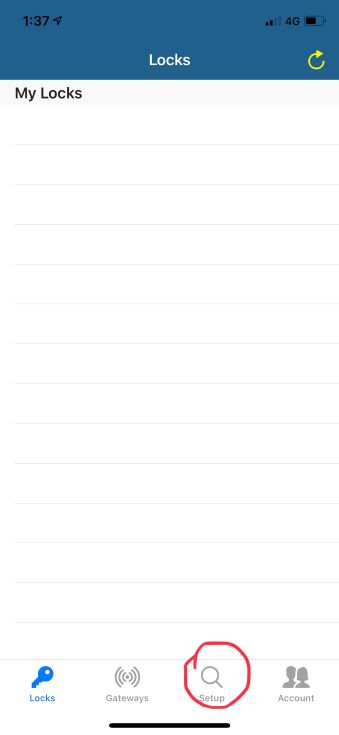
Tap on Setup to go to the Unactivated Device List page.
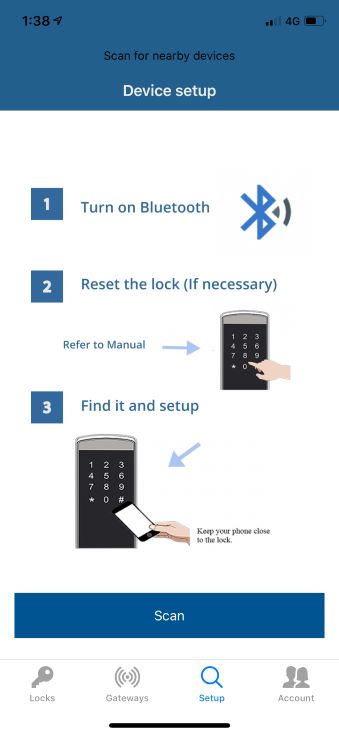
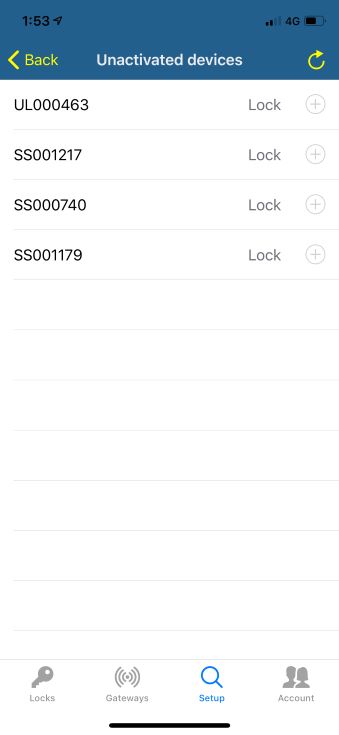
Tap on Scan, from there you will see the devices that require activation.
Troubleshooting
If you are unable to find your lock in the list, please try the following;
Restart the app
- Force close the app, turn Bluetooth off and on again and reopen the app
- Restart from the Pairing process
Refresh the Lock with power recycle for battery locks
- Remove 1 battery
- Place your 4 fingers or palm on the keypad of the lock, while inserting the battery.
- Restart from the Pairing process
Reset the Lock
-
From the lock's keypad, enter
* * 888 888 # 199 #
-
The lock is now in initialisation mode. Restart from the
Initialisation process and configure for cloud mode
Activating the Lock
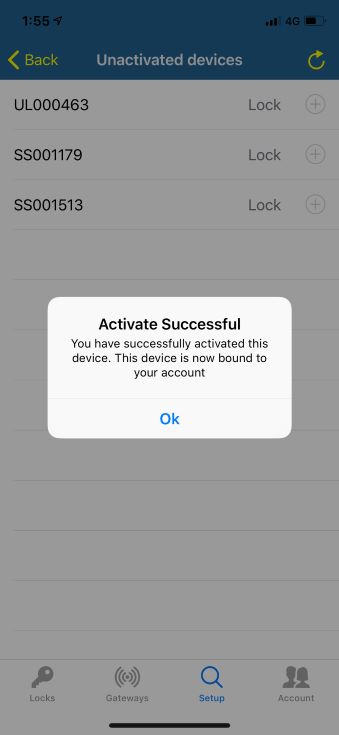
Click on the lock that you just paired with and press activate.
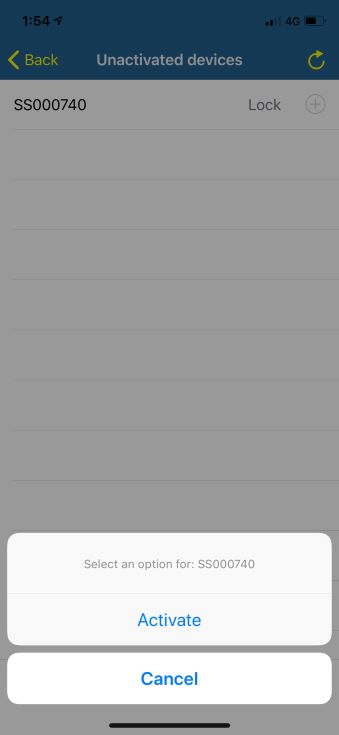
After activating you will be able to see the activate successful message. Click OK
Configuration
- Tap on the Lock section at the bottom and you will see all the activated devices now.
- Note: After the activation from KAS cloud App, the hardware will automatically migrate to your KAS Cloud Web Console account.
- Tap on the lock that you just Activated
- Tap “Edit Lock Name” to edit the Locks default name and add a description. (E.g Front Door, Unit 1 etc)
Syncing the Lock to your app
WARNING: We recommend using the KAS Cloud Web Console to issue pin code access. **This is only provided as a last resort if your internet fails at the property.**
Syncing the lock to your app, allows you to issue pre-configured codes for specified hours or days and permanent access.
The sync is only required once, if you need to revoke access you will need to sync again.
1 pin code can not be revoked without revoking all codes. To revoke all codes you must be at the lock and sync with the app again.
Syncing can not be done from the console. This is a sync between the phone and locks only.
Console issued codes are different from auto-generated codes. There is no list of the codes that have been generated, you must manually manage the codes issued. The clock must be set for these codes to work.
- Tap the lock you just remanded, this time, Click Auto Generate Pine Code on this page.
- On the top right corner, press Sync. Once successful press ok
- You can also set the Clock now by pressing Clock, however setting the clock can be performed from the console too
Bluetooth Unlock
Bluetooth unlock can only be performed while in Bluetooth range
Now you can click on the “unlock” button in your App to unlock the lock by your mobile phones BLE connection
Troubleshooting
Greyed out means the lock is not connected to the phone's Bluetooth. This means you may be out the range if you are in the range try pulling down on the app to refresh the page or hard close the app and reopen it.
Remote Unlock
If your gateway has already been installed and configured you can now select the lock and press
Remote Unlock.
Remote Unlock.
This unlocking option is different from the Bluetooth unlock. You must have a gateway set up and connected to test this feature.
There may be a delay of up to 10 seconds, this is due to the internet speed and connecting between the gateway and lock.
Remote unlock can be performed from the console too.
Setting up the Gateway
Your gateways should be installed at the point as per our recommendations, click below for the Gateway installation documentation
Make sure you can see the GWS Number sticker on the gateway. This will be needed later.
Pair the Gateway
- You will see a solid red LED to notify you that the gateway is powered and in config mode.
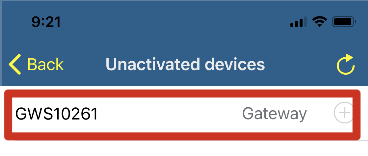
- Login to KAS Cloud and go to the Setup then press Scan
- Select the Gateway factory number to activate it For example GWS10261
Configure Gateway
- Under Gateways, find the gateway you activate. Select it for more options
- For POE: You do not need to configure the connection. The gateway will automatically assign a dynamic IP address and connect to the network.
- The LAN network must be DHCP enabled.
- For WIFI: Press Config and enter your wifi credentials
- This is case sensitive
- Select the Gateway again and rename it to a name that is more recognisable to the property, then press OK. eg Floor 1, Ground Level
Notes
- The gateway will automatically scan and discover nearby activated locks. You do not have to connect the gateway directly to any lock.
- It may take up to 3 minutes for the device to discover the nearby lock.
- If you move a gateway position far away from an activated lock, it will automatically drop that connection and start new ones with other nearby locks.
- We suggest you leave the “GWS” stickers on the gateways for future identification purposes.
Gateway Light Notifications

Red solid LED: Configuration Mode
 Red flashing LED: Connected the internet
 Green flashing LED: Connected to Wifi
Green & Red flashing Connected to the internet via POE
Troubleshooting
If you are unable to find the gateway try the following;
Restart the app
-
Force close the app, turn Bluetooth off and on again and reopen the app
- Restart from Activate the Gateway
Reset the Gateway
Resetting the gateway will remove it from an account if it is was paired with one. This will keep the wifi credentials if they were entered.
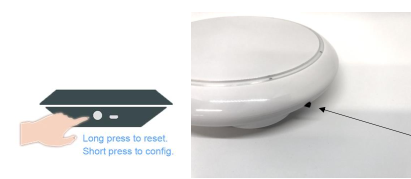
- Long press the button (10 seconds) on the side of the gateway.
- Upon factory reset the red LED will pulse once.
Gateway Reset Wifi Credentials
Changing the wifi credentials can be performed from the app. If you need to hard reset the wifi credentials for any reason but don't want to have the gateway removed from your account.
- Short press (3 seconds) The gateway will drop the current WIFI parameters.
- Return to the app and click ‘config’ to enter new WIFI parameters.